How to Cast Live Football to Any TV From Your Phone
Already have legal access to a live football or soccer stream? Open its compatible web player in CastBrowser, tap Cast, and choose a supported TV receiver. Protected matches stay in the broadcaster's approved app.
Open your authorized compatible stream, tap Cast, and choose your TV.
How to Cast Any Live Football Match in 3 Steps
The same legal setup works whether you search for football or soccer: domestic leagues, European competitions, international fixtures, replays, and highlights. It takes about two minutes:
- Install CastBrowser (free, no account) on your Android phone or iPhone.
- Sign in to the official broadcaster or authorized streaming service for the match and open its compatible web player in CastBrowser.
- Start the video, tap the cast icon, and pick your TV. Your phone remains available as the remote.
Because CastBrowser supports Chromecast, AirPlay, DLNA, Roku, Fire TV, and its own Web Receiver, this flow covers a Samsung or LG Smart TV in the living room, a Roku stick in the bedroom, and even a hotel TV when the network allows device discovery.
Step 1 — Use the Official Broadcaster for Your Region
Football rights change by country and competition. Before casting, confirm that the service holds the rights where you live and that your account includes the match. Then choose the playback path that service supports:
- Compatible web player: open it in CastBrowser, start the match, and select the detected video.
- DRM-protected service: use the broadcaster's official app and its built-in Chromecast or AirPlay control.
- TV app available: the native TV app is usually the simplest option for protected live broadcasts.
- Replay or highlights: use the same authorized service; availability and expiration dates vary by rights holder.
Once a compatible stream is playing in CastBrowser, automatic video detection shows the available source and qualities. Select one, choose the TV, and keep the phone connected to the same Wi-Fi while casting.
Cast the 2026–27 Football Season to Your TV
The 2026/27 European club season runs from August 2026 into May and early June 2027. The major domestic leagues begin in August and finish in May. UEFA league phases begin between September and October; the final UEFA matches take place from late May through June 5, 2027. CastBrowser does not replace a subscription or official broadcaster: it helps move a compatible stream you already have from your phone to the TV.
For all eight competitions, current organizer links, and the complete season window, use the 2026/27 European football TV guide. Rights vary by territory, so identify the official service for your country before opening its authorized stream in CastBrowser.
| 2026–27 competition | Season timing | Official broadcaster examples |
|---|---|---|
| Premier League | Starts August 21–22, 2026 | Sky Sports and TNT Sports in the UK; NBC Sports and Peacock in the US; DAZN in Spain; Fubo in Canada. Check the official Premier League partner list. |
| UEFA Champions League | Qualifying in July and August; league phase starts September 8–10 | Paramount+, TUDN, and DAZN in the US; DAZN in Canada; DAZN and Amazon Prime in Germany; Telefónica in Spain; beIN in MENA. Verify the current UEFA broadcast partners. |
| LaLiga | Opening fixtures begin August 15, 2026 | Movistar Plus+, DAZN, and Orange TV carry matches in Spain. Confirm the operator shown for each match on the official LaLiga schedule. |
| Bundesliga | Starts August 28, 2026 | Sky carries individual Friday and Saturday matches in Germany; DAZN carries the Saturday conference and Sunday matches. See the official Bundesliga rights summary. |
The same setup applies to Serie A, Ligue 1, the UEFA Europa League, Conference League, domestic cups, and international qualifiers. Start with the official service for your location. If its web player exposes a supported non-DRM stream, CastBrowser can detect it and send it to your TV; otherwise use the service's official app and built-in casting button.
Install CastBrowser now and test your TV before the next Premier League or Champions League match.
Step 2 — Cast from Android
On Android, install CastBrowser from Google Play. Open the app, navigate to your broadcaster's live match page, and tap the cast icon when it appears. Pick your TV from the list — Chromecast, Fire TV, Roku, DLNA Smart TV, or Web Receiver — and the football stream starts on your TV in seconds. Background casting keeps the match playing on your TV even when the phone screen is off, and you can control playback from the lock screen. Full walkthrough: cast from Android to TV.
Step 3 — Cast from iPhone
On iPhone, install CastBrowser from the App Store. From the live match page in CastBrowser's browser, tap the cast icon and choose your TV. iPhone supports AirPlay to Apple TV and AirPlay-enabled Samsung/LG/Sony Smart TVs, plus Chromecast, DLNA, Fire TV, Roku, and the Web Receiver. The full guide is here: cast from iPhone to TV.
Cast Live Football to Chromecast or Google TV
When a supported Chromecast or Google TV is reachable on the local network, CastBrowser can show it in the device list through Google Cast. Tap Cast, choose the receiver, and test the authorized compatible stream. Playback quality and delay depend on the source, network, format, codec, and receiver; older devices may support fewer formats.
If you have an Android TV or Google TV device and want a CastBrowser-specific TV app, install the official CastBrowser TV Cast Receiver from Google Play on the TV. It acts as the TV-side receiver for match streams sent from the CastBrowser phone app.
Cast Live Football via AirPlay
On iPhone, CastBrowser uses the system AVPlayer, so AirPlay 2 works with Apple TV and with Samsung, LG, and Sony Smart TVs that include AirPlay 2 (most 2018+ models). Pick the AirPlay target from the cast menu and the match plays on your TV using your iPhone as the controller. For Smart TVs without AirPlay, the same iPhone can fall back to DLNA — covered next.
Cast Live Football to Samsung, LG and Sony Smart TVs (DLNA)
Many Samsung Tizen, LG webOS, Sony Bravia, Hisense, TCL, and Philips models expose DLNA or another compatible receiver, but support varies by model and region. If CastBrowser discovers the receiver, test the authorized compatible video before matchday. The TV must be able to fetch and decode the source format; detection alone is not a playback guarantee.
Deep-dive guide: how to cast live football to Samsung, LG, Sony, or another Smart TV.
Cast Live Football to Roku and Fire TV
Roku and Fire TV dominate streaming-stick households in North America. CastBrowser publishes a Roku channel (channel ID 847516) that uses the ECP protocol, and integrates Amazon Fling SDK for Fire TV Stick. Both appear in CastBrowser's device list with no extra setup. See cast to Roku and cast to Fire TV Stick for device-specific walkthroughs.
Web Receiver — for Any TV with a Browser
If a TV, console, projector, or hotel-room screen has a compatible modern browser and reachable network, open castb.cc, enter the 3-character code shown in CastBrowser, and test the authorized video. Browser media support and network restrictions vary, so this is an option rather than a universal fallback.
Casting vs Screen Mirroring for Live Football
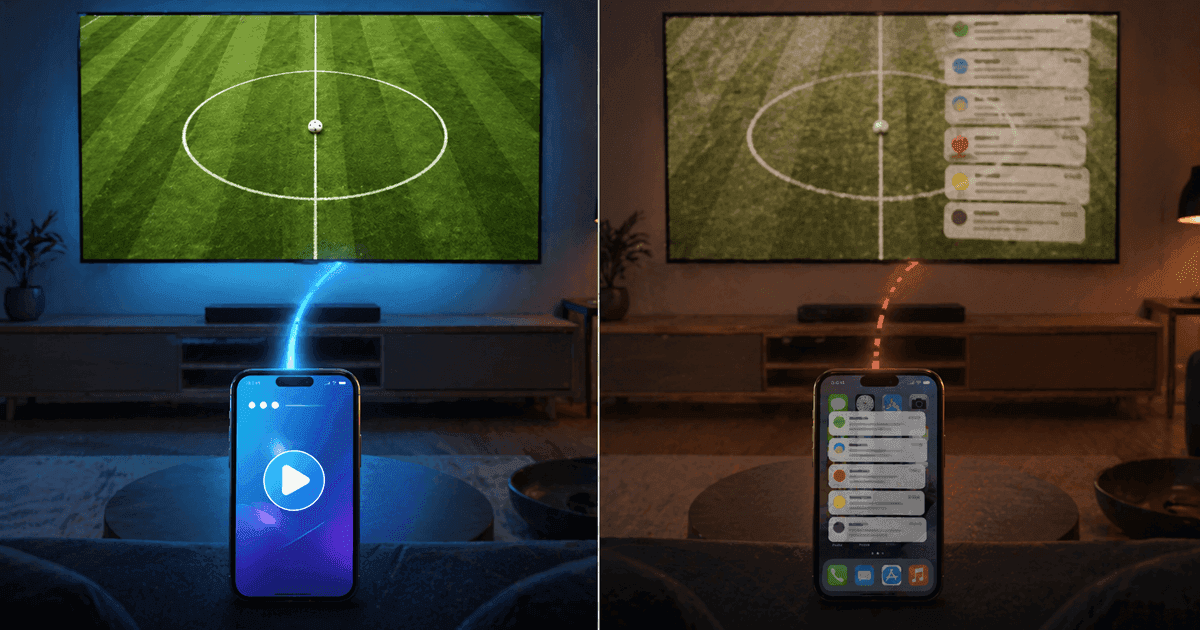
Casting is usually the better route when the licensed service and receiver support it. In a receiver-based flow, the phone sends a media load request and remains the controller while the TV receiver loads and plays the media; Google documents this sender-and-receiver architecture for Google Cast. Screen mirroring instead captures the phone display and projects that captured output to another screen, as described in Android's media-projection documentation. That extra capture path can add delay, scaling, battery use, and notification exposure. Protected apps may block mirroring, and it is not a DRM workaround.
| For Live Football | Casting | Screen Mirroring |
|---|---|---|
| Playback path | TV receiver loads the supported media; phone remains the controller | Phone display is captured and projected to the TV |
| Added latency | No phone screen-capture stage; source buffering still applies | Adds a capture and projection stage; extra delay varies |
| Video quality | Receiver plays a source rendition it supports; no phone-screen scaling | Can be limited by capture resolution, scaling, and encoding |
| Phone battery | Usually lower use after playback starts | Usually higher while capture remains active |
| Notifications on TV | Not part of the media stream | May appear when the full display is mirrored |
| Use phone for stats / chat | Phone remains available as controller | Limited while the display is being shared |
Common Problems Before Kickoff
- TV not appearing: phone and TV must be able to reach each other on the local network. Guest networks, client isolation, VLANs, and some VPN settings can block discovery; the devices do not need the same Wi-Fi band when the router bridges both.
- Stream detected but won't play on TV: the broadcaster may require protected playback or the receiver may not support the format, codec, or temporary URL. Use the broadcaster's approved app for DRM video.
- Buffering during the match: switch to 5 GHz Wi-Fi, move closer to the router, or change CastBrowser delivery mode to Always Proxy in settings.
- Audio out of sync: stop the cast, restart it, and pick a different video quality from CastBrowser's detected list.
- Subtitles missing: CastBrowser extracts subtitle tracks automatically — toggle them in the cast control panel.
Frequently Asked Questions
How do I cast live football from my phone to my TV?
Sign in to the official broadcaster or authorized streaming service for the match, open its compatible web player in CastBrowser, start the video, tap the cast icon, and select your TV. CastBrowser can send supported non-DRM streams to Chromecast, Google TV, AirPlay, DLNA Smart TVs, Fire TV, Roku, or its Web Receiver. If the service protects the match with DRM, use the broadcaster's own app and its built-in casting option.
What is the easiest app for casting live football to a TV?
CastBrowser gives iPhone and Android users one casting flow for Chromecast, Google TV, AirPlay, Roku, Fire TV, DLNA Smart TVs, and compatible TV browsers through the Web Receiver. Open an authorized compatible stream in the built-in browser, tap the cast icon, and pick the TV. CastBrowser sends the stream you are entitled to watch; it does not provide matches or subscriptions.
Does CastBrowser provide live football streams?
No. CastBrowser is an independent casting browser. It does not host, sell, distribute, or provide access to football matches or other broadcast content. Use the official broadcaster or licensed streaming service for your country and only stream content you are authorized to access. CastBrowser sends a compatible video that is already available to you from your phone to your TV.
Which devices can I cast live football to?
CastBrowser supports Google Cast, AirPlay, DLNA, Fire TV, Roku, the CastBrowser TV Cast Receiver, and a Web Receiver. Together these routes cover many common TV setups, but availability depends on the exact model, receiver settings, network, source format, and codec. Check whether your TV exposes a compatible receiver and test the authorized stream before kickoff.
Why is my football stream not casting to my TV?
Common causes include local-network isolation, a disabled receiver, a VPN or privacy setting that blocks discovery, an incompatible video format or codec, a temporary source URL, and DRM. The phone and TV must be able to reach each other, but they do not need the same Wi-Fi band when the router bridges both correctly. Use the broadcaster's approved app or cast control for DRM-protected video. Non-DRM status alone does not guarantee receiver compatibility.
Is casting live football legal?
Permission depends on the licensed provider's terms and the law that applies where you live. Use only a stream you are authorized to watch and a playback method the provider supports. CastBrowser does not provide matches, subscriptions, pirated streams, or tools to bypass DRM or territory restrictions.
Should I use casting or screen mirroring for live football?
Casting is usually preferable when the licensed service and receiver support it because the phone can remain available as a controller. Screen mirroring may use more battery, show notifications, reduce quality, or add delay, and protected apps may block it. Quality and latency vary by source, network, codec, and receiver; neither route bypasses DRM.
Does CastBrowser work on iPhone and Android?
Yes. CastBrowser is available for both iOS and Android. The iPhone version supports AirPlay (including AirPlay 2 to compatible Smart TVs), Chromecast, DLNA, Fire TV, Roku, and the Web Receiver. The Android version adds native Google Cast SDK integration, background casting with playback resumption, and works with the same set of TV protocols. Both versions are free with no account required and include the built-in browser, a built-in ad blocker, automatic video detection, subtitle extraction, and local file casting.
Your 2026–27 Football Casting Setup
Install CastBrowser free and use one app for compatible Premier League, Champions League, LaLiga, Bundesliga, and other football streams on Chromecast, AirPlay, DLNA, Fire TV, Roku, or any TV browser.