How to Cast to Roku TV from iPhone or Android
To cast to Roku TV, use a Roku-native casting app on your iPhone or Android phone. CastBrowser detects compatible web videos and sends them to Roku TV, Roku Stick, Roku Ultra, Roku Express, and other Roku streaming devices using Roku's native protocol. This guide is for phone-to-Roku casting; if you specifically need to cast Chrome to Roku, use the dedicated Chrome workaround guide.
Cast to Roku in 30 seconds
The reliable way to cast web video to Roku is to send the actual video stream through a Roku-compatible app. CastBrowser detects compatible non-DRM videos in its browser and hands them to your Roku directly, so the TV plays the video instead of mirroring your phone screen. Use this page for phone-to-Roku setup; use the linked specialist pages for Chrome or Chromecast compatibility questions.
- Install CastBrowser (free) on your Android or iPhone.
- Connect both your phone and Roku to the same Wi-Fi network.
- Open a compatible website in CastBrowser — it auto-detects playable non-DRM videos on the page.
- Tap the cast icon and pick your Roku from the device list.
- The Roku plays the video through its native player. Chrome's cast button cannot reach Roku — only a Roku-native app can.
Related: Need to cast Chrome to Roku? Wondering does Roku support Chromecast? Those have separate focused guides.
Cast web videos to Roku free from iPhone or Android — no account needed.
What You Need to Cast to Roku
Casting to Roku sends the video stream directly to your TV over your local network. Your phone acts as a remote control, which means lower battery drain and better video quality compared to screen mirroring. Here's what you need:
- A Roku device (Roku TV, Roku Streaming Stick, Roku Ultra, Roku Express, or Roku Premiere)
- An Android or iOS phone with CastBrowser installed
- Both devices connected to the same Wi-Fi network
- No account required — CastBrowser is free to download and use
How to Cast to Roku TV (Step-by-Step)
Install CastBrowser on Your Phone
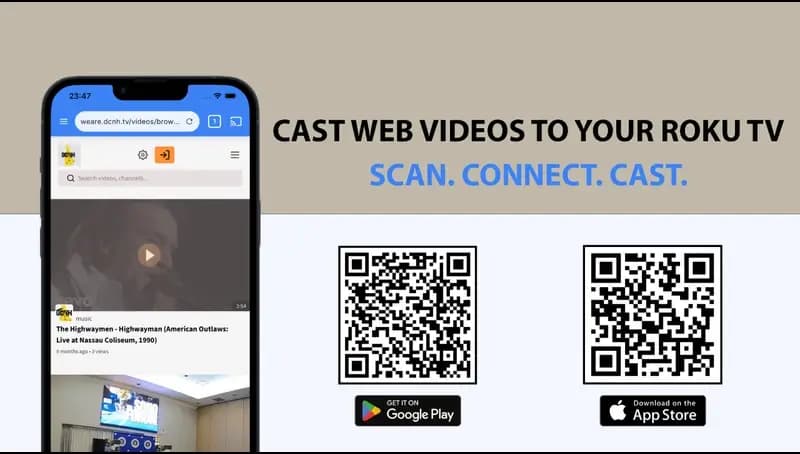
Download CastBrowser from the Google Play Store for Android or the Apple App Store for iPhone. The app is free with no account required. It includes a full web browser with multi-tab support, automatic video detection, and a built-in ad blocker.
Connect Your Phone and Roku to the Same Wi-Fi
Both your phone and Roku must be on the same Wi-Fi network. CastBrowser automatically finds Roku devices on your local network. If your router has separate 2.4GHz and 5GHz bands, either band works as long as both devices can reach each other.
Browse to a Website with Videos
Open CastBrowser and navigate to a compatible website with video content. You can type a URL directly or use the search bar. CastBrowser's built-in browser works just like Chrome or Safari — it supports tabs, bookmarks, and history.
Let CastBrowser Detect the Video
CastBrowser automatically detects videos on every page you visit. When videos are found, you'll see a notification. Tap to view available videos with quality options when multiple resolutions are available.
Cast to Your Roku
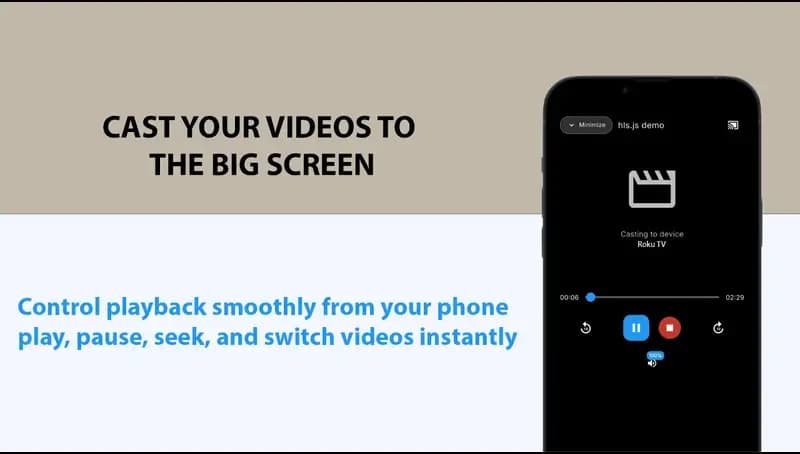
Tap the cast icon and select your Roku device from the list. CastBrowser communicates with your Roku using its native protocol, which means reliable playback without screen mirroring. The video starts playing on your TV. Use your phone to play, pause, seek, and adjust volume.
Pro tip: Background casting
Once the video is playing on your Roku, you can turn off your phone screen or switch to other apps. CastBrowser supports background casting, so the stream continues uninterrupted. You can also save your playback position and resume later with CastBrowser's playback resumption feature.
How to Cast from Chromebook to Roku TV
Chromebooks and Roku speak different casting languages, which makes direct casting tricky. The short version is below; for the full workaround, see the dedicated cast Chrome to Roku guide.
Why Chromebook-to-Roku Casting Is Complicated
Chromebooks use Google Cast (the same protocol as Chromecast) for wireless streaming. Roku uses its own separate casting system that is not compatible with Google Cast. This means the built-in "Cast" button in Chrome on a Chromebook will not detect your Roku device.
Some Roku devices do support Miracast for screen mirroring from Windows laptops, but Chromebooks do not support Miracast either. So the main wireless display options that Roku offers are both unavailable from a Chromebook.
The Best Workaround: Use CastBrowser on Your Phone
The most reliable way to get compatible web video onto your Roku is to use CastBrowser on your Android or iPhone. Open the same website you were viewing on your Chromebook in CastBrowser, and cast the detected video directly to your Roku TV. CastBrowser supports Roku natively, so the video plays through Roku's own playback path.
Chromebook to Roku: Your Options
- Chrome Cast button: Will not work — Roku does not support Google Cast protocol
- Miracast screen mirroring: Not available — Chromebooks do not support Miracast
- HDMI cable: Works if your Chromebook has an HDMI port, but requires a physical cable
- CastBrowser on phone (recommended): Browse the same site on CastBrowser and cast to Roku wirelessly
Chromecast vs Roku — Can You Use Chromecast with Roku?
Many people assume that because Chromecast is common, every streaming device supports it. Roku does not. For the detailed compatibility answer, read does Roku support Chromecast.
Chromecast (Google Cast) is Google's casting protocol. It's built into Chrome browser, Android phones, and Chromecast hardware. When you tap "Cast" in an app or browser, it looks for Google Cast-compatible devices.
Roku uses its own separate casting system. Roku devices do not show up when you use Chrome's cast button or any app's built-in Chromecast feature.
Google Cast (Chromecast)
- Works with Chromecast dongles
- Built into Google TV and Android TV
- Supported by Chrome browser
- Used by YouTube, Netflix apps, etc.
- Does NOT work with Roku
Roku Casting
- Works with all Roku devices
- Proprietary to Roku
- Not supported by Chrome browser
- Requires Roku-compatible apps
- Supported by CastBrowser
This is exactly why CastBrowser exists. Instead of relying on Google Cast (which Roku ignores), CastBrowser supports Roku natively. It discovers your Roku on the network, and streams the video directly — no Chromecast hardware needed.
How to Cast Chrome Browser to Roku
If you're trying to cast a video from Chrome browser on your computer to a Roku TV, Chrome's built-in cast feature won't help because it only works with Chromecast devices. The full step-by-step is covered in cast Chrome to Roku; this page stays focused on phone-to-Roku setup.
Option 1: Use CastBrowser on Your Phone (Recommended)
The easiest and most reliable method is to use CastBrowser on your phone instead of Chrome on your computer. Open the same website in CastBrowser, and the app will detect the video and cast it directly to your Roku. This gives you the best video quality, built-in ad blocking, and full playback control from your phone.
Option 2: Miracast Screen Mirroring (Windows Only)
If you're on a Windows PC, some Roku devices support Miracast screen mirroring. Go to your Roku's Settings > System > Screen mirroring and enable it. Then on your Windows PC, press Win+K to open the Connect panel and select your Roku. This mirrors your entire screen, not just the video, so it uses more bandwidth and shows everything on your desktop.
Option 3: Use the Roku Mobile App
The official Roku app offers basic media casting for photos and videos stored on your phone, but it does not include a web browser or automatic video detection. For web-based video content, CastBrowser lets you browse the web on your phone and detect compatible playable videos automatically.
How to Cast to Roku TV from Android
Android is the most straightforward platform for casting to Roku. CastBrowser uses Roku's native protocol — not screen mirroring — so you get full video quality with minimal battery drain. Here's how to do it:
- Download CastBrowser from the Google Play Store
- Make sure your Android phone and Roku are on the same Wi-Fi network
- Open CastBrowser and browse to the website with the video you want to watch
- Tap the cast button in the toolbar — CastBrowser will find your Roku automatically
- Select your Roku device and the video starts playing on your TV
Android users also get background casting — once the video is playing on your Roku, you can lock your screen or switch to other apps and the stream keeps going uninterrupted. Playback controls stay available in your notification panel.
For more details, see our full guide to casting from Android to TV.
How to Cast to Roku TV from iPhone
iPhone users can cast to Roku TV just as easily. CastBrowser is available on the Apple App Store and follows the same simple process:
- Install CastBrowser from the App Store
- Connect your iPhone and Roku to the same Wi-Fi network
- Open CastBrowser and navigate to a compatible website with video content
- Tap the detected video, then select your Roku from the device list
- The video plays on your Roku TV — use your iPhone as the remote
Unlike AirPlay, which only works with Apple TV and AirPlay 2-compatible TVs, CastBrowser works with Roku, Chromecast, Fire TV, and DLNA Smart TVs — all from a single app. This makes it the go-to solution for iPhone users who own a Roku TV instead of an Apple TV.
For more details, see our full guide to casting from iPhone to TV.
How to Screen Mirror (Screencast) to Roku — and Why Casting Is Better
If you've searched for how to screencast to a Roku device, it's worth understanding the difference between screen mirroring and video casting — because they work very differently. Roku does support screen mirroring via Miracast (from Android phones and Windows PCs), but casting with CastBrowser gives a fundamentally better experience for watching videos. Here's why:
CastBrowser (Video Casting)
- + Sends the video stream directly to Roku
- + Full video quality — no re-encoding
- + Low battery usage on your phone
- + Use your phone freely while casting
- + Built-in ad blocker
- + Subtitle support (SRT/VTT)
- + Works on both iPhone and Android
- + Supports 20+ video formats
Roku Screen Mirroring
- - Mirrors your entire phone screen to TV
- - Compressed quality with noticeable lag
- - Drains your battery quickly
- - Phone is locked to the mirrored content
- - No ad blocking
- - Notifications and private info visible on TV
- - Not available on iPhone (no Miracast)
- - Limited to what your phone can display
Screen mirroring has its place — it's useful for presentations, showing photos, or demonstrating an app. But for watching videos, casting with CastBrowser delivers better quality, saves battery, and lets you use your phone normally while the video plays on your TV.
Supported Roku Devices
CastBrowser works with current Roku streaming players and Roku TVs, including:
- Roku Smart TVs (TCL, Hisense, Sharp, Philips, and others)
- Roku Streaming Stick and Streaming Stick 4K
- Roku Express and Express 4K+
- Roku Ultra and Ultra LT
- Roku Premiere and Premiere+
- Roku Streambar and Streambar Pro
CastBrowser also works with Amazon Fire TV, Samsung Smart TVs, Chromecast, and any DLNA-compatible TV. If you have multiple devices at home, one app covers all of them.
Supported Video Formats for Roku Casting
CastBrowser detects videos in over 20 formats, including both on-demand and live streams. It can repackage compatible HLS streams when Roku needs a friendlier delivery path, but Roku's native codec support still decides which files and streams can play.
This broad format support means you can cast videos from many compatible websites, including sites that use HLS, DASH, and standard MP4 streams.
Why Use CastBrowser to Cast to Roku?
- Native Roku support: CastBrowser connects directly to your Roku for reliable casting — no screen mirroring needed.
- Automatic video detection: Finds playable videos on compatible websites automatically — no need to search for URLs.
- Built-in ad blocker: Enjoy a cleaner browsing experience — blocks ads, popups, bad redirections, and trackers.
- Cast local files: Beyond web videos, cast media files stored on your phone directly to your Roku.
- Subtitle support: Load SRT or VTT subtitle files for any video you cast.
- Playback resumption: Stop a video and pick up where you left off later.
- Free to download and use: No account required and no hidden fees.
Troubleshooting Roku Casting Issues
Roku not showing up in the device list?
- Check Wi-Fi: Verify both your phone and Roku are on the same Wi-Fi network. This is the most common cause.
- Enable external control: On your Roku, go to Settings > System > Advanced system settings > External control and make sure it is set to "Default" or "Permissive."
- Restart devices: Power cycle both your phone and Roku. For Roku, unplug it for 10 seconds and plug it back in.
- Disable VPN: VPNs on your phone can prevent local network discovery. Disable any active VPN and try again.
- Pull to refresh: In CastBrowser, pull down on the device list to refresh.
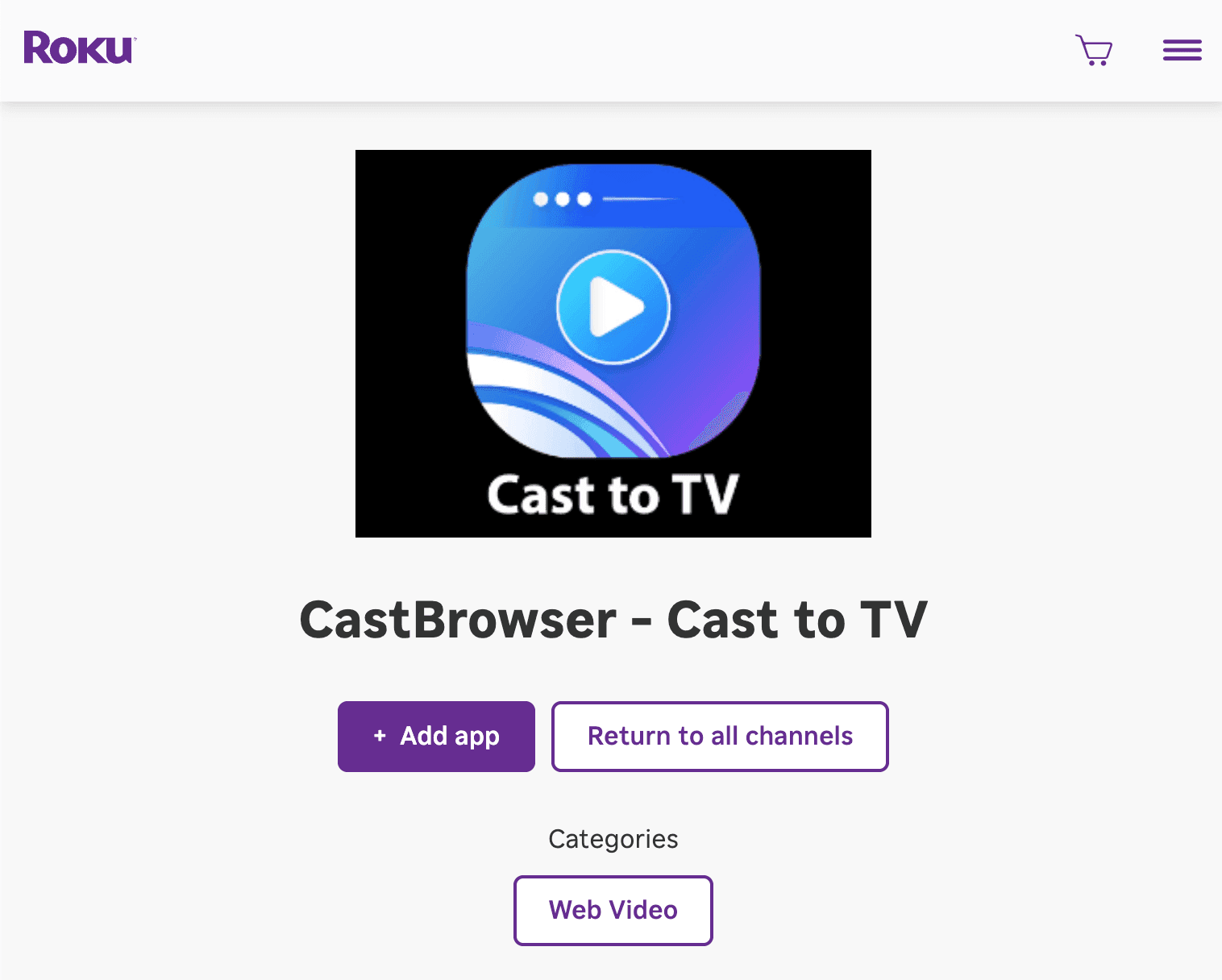
- Install the official Roku channel manually: Roku devices do not include a web browser. If discovery still fails, sign in to your Roku account from any browser and add the official CastBrowser Roku channel. After you add it to your Roku account, it installs automatically on Roku devices linked to that account.
- Check router settings: Some routers have "AP isolation" or "client isolation" enabled, which blocks devices from communicating with each other. Disable this in your router settings.
Video not detected on a website?
- Play the video first: Some websites only load the video stream after you press play. Start the video on the page, wait a few seconds, then check CastBrowser's detected videos list.
- Try a different page: Some sites use DRM protection that prevents video detection. Try a different source for the same content.
- Disable ad blocker temporarily: In rare cases, aggressive ad blocking can interfere with video loading. Try toggling the ad blocker off for that site.
Video buffering or playback issues?
- Lower video quality: If multiple quality options are available, try a lower resolution to reduce buffering.
- Use 5GHz Wi-Fi: If your router supports dual-band, connect both devices to the 5GHz band for faster throughput.
- Move closer to router: Weak Wi-Fi signals cause buffering. Move your Roku or router to improve signal strength.
- Close other apps: Other apps or devices using heavy bandwidth can cause buffering. Close unnecessary apps and pause downloads.
Frequently Asked Questions
Can you cast from a Chromebook to a Roku TV?
Not directly. Chromebooks use Google Cast for built-in casting, but Roku is not a Google Cast receiver, so Chrome's cast button will not show Roku devices. The practical workaround is to open the same video in CastBrowser on an iPhone or Android phone and cast from the phone to Roku.
Can you use Chromecast with Roku?
You can plug a Chromecast dongle into a Roku TV's HDMI port, but Roku OS itself does not support Chromecast or Google Cast. Chromecast and Roku remain separate casting systems. To cast web video to the Roku side of the TV, use a Roku-native casting app like CastBrowser.
How do I cast from Chrome browser to Roku?
Chrome cannot cast directly to Roku because Chrome uses Google Cast and Roku does not support that protocol. The practical workaround is to open the same URL inside CastBrowser on iPhone or Android, let CastBrowser detect the video, and cast from the phone to Roku.
What video formats does Roku support for casting?
CastBrowser detects 20+ web video formats for Roku casting. On-demand formats include MP4, MKV, AVI, WebM, MOV, FLV, 3GP, M4V, OGV, WMV, and MPEG-TS. For adaptive streaming from modern websites, CastBrowser supports HLS (M3U8 playlists) and DASH (MPD manifests), which are used by most streaming platforms. Live streams in HLS and DASH are also supported, so you can cast live TV or sports events to your Roku in real time. Roku devices have their own supported codec list, and CastBrowser can repackage compatible HLS streams when needed, but unsupported codecs can still fail. All supported casting features are available at no extra cost.
How do I cast to Roku TV from Android?
To cast to Roku TV from Android, install CastBrowser from the Google Play Store. Make sure your Android phone and Roku device are on the same Wi-Fi network. Open CastBrowser, browse to the website with the video you want to watch, and tap the cast button. CastBrowser will detect your Roku automatically and start playing the video on your TV. Android users also get background casting — the stream continues even when you lock your screen or use other apps.
Can I cast to Roku TV from iPhone?
Yes. Install CastBrowser from the Apple App Store on your iPhone. Connect both your iPhone and your Roku device to the same Wi-Fi network. Open CastBrowser, browse to a website with video content, tap the detected video, and select your Roku from the device list. The video will start playing on your Roku TV. Unlike AirPlay, CastBrowser works with Roku, Chromecast, Fire TV, and DLNA Smart TVs — all from one app, with no Apple TV required.
What does 'Cast source not supported' mean on Roku?
The 'Cast source not supported' error on Roku usually appears when an app or device tries to send a video format Roku cannot decode natively, or when a non-Roku casting protocol (like Google Cast / Chromecast) tries to reach the Roku. Roku does not support Google Cast, so Chromecast-only apps can surface this kind of error. The fix is to use a casting app that speaks Roku's native ECP/DIAL protocol — like CastBrowser — and has compatibility handling for formats Roku may reject. CastBrowser detects compatible video on the page, can repackage HLS when needed, and sends a Roku-friendly stream. See the dedicated 'Cast source not supported on Roku' troubleshooting guide for a full diagnostic walkthrough.
Does Roku support Chromecast?
No. Roku does not support Chromecast or Google Cast. Roku uses its own casting and control protocols, mainly ECP and DIAL, so Chrome's cast button and Chromecast-only apps cannot see Roku devices.
Why is my Roku not showing up for casting?
The most common reason your Roku is not showing up is that your phone and Roku are on different Wi-Fi networks. Many routers broadcast separate 2.4 GHz and 5 GHz networks — ensure both devices are on the same one. If that looks correct, check that External Control is enabled on your Roku: go to Settings → System → Advanced system settings → External control and set it to Default or Permissive. Also try restarting both your phone and your Roku by unplugging it for 10 seconds. Disable any VPN or firewall app on your phone, as these block local network discovery. Pull down to refresh the device list in CastBrowser after making changes. Roku devices do not include a web browser, so if discovery still fails, log in to your Roku account from any phone or computer browser and add the official CastBrowser Roku channel from the Roku Channel Store. After you add it to the account, Roku automatically installs it on devices linked to that account.
Start Casting to Your Roku TV
Download CastBrowser for free and stream web videos to your Roku TV, Roku Stick, or Roku Express in seconds.