Does Roku Support Chromecast? No. Here's How to Cast Anyway
Short answer: no, Roku doesn't support Chromecast or Google Cast. Chrome's cast button cannot see Roku devices because Roku uses ECP and DIAL instead of Google's casting protocol. This guide explains the difference and shows how to cast from Chrome, iPhone, Android, or Chromebook to Roku with a Roku-native workaround.
Quick answer
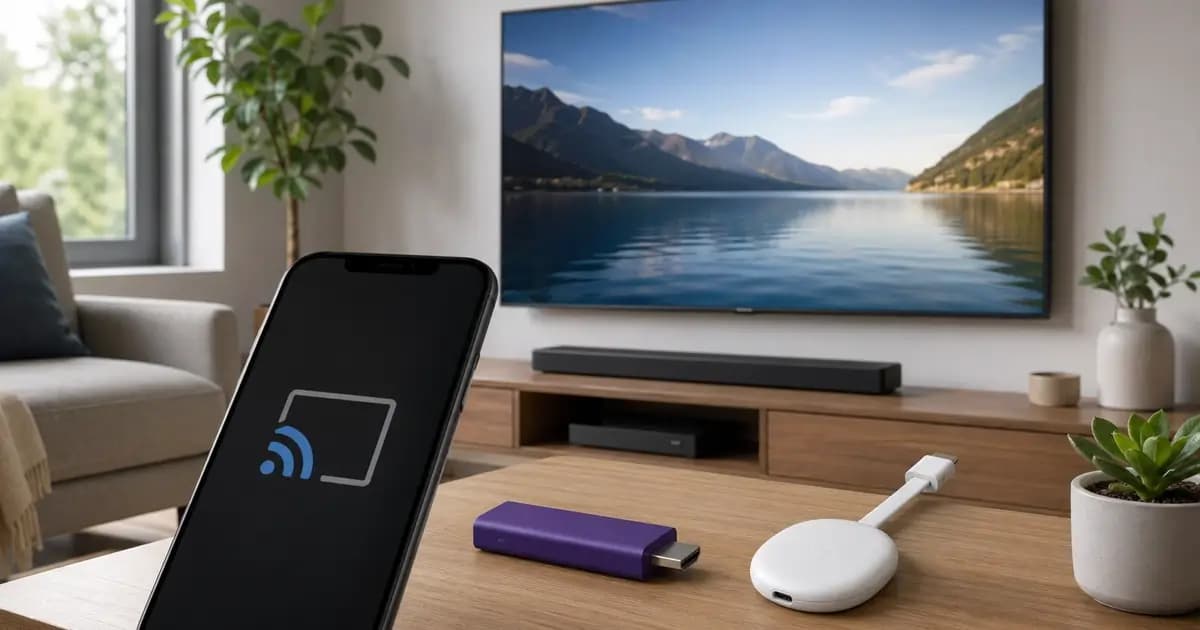
Roku does not support Chromecast. A Chromecast dongle can plug into a Roku TV's HDMI port, but the Roku operating system itself does not receive Google Cast streams. For web video, use a Roku-native casting path such as CastBrowser for Roku instead of Chrome's built-in cast button.
- Does Roku support Chromecast? No — Roku uses its own ECP / DIAL protocols, not Google Cast.
- Will the Chrome cast button work? No, it can't see Roku devices.
- Will the cast icon in YouTube / Spotify / Netflix work? The cast icon doesn't use Google Cast for Roku — but YouTube is a special case: install YouTube on your Roku, sign in on both devices, and the YouTube mobile app pairs with Roku via the open DIAL standard (not Chromecast). Other apps without DIAL support won't see Roku at all.
- What works instead? A Roku-native app like CastBrowser casts directly to Roku — Chrome and Chromebook included, via your phone.
Why Roku Doesn't Support Chromecast
Roku and Google are direct competitors in the streaming-device, smart-TV-OS, and ad-supported-video markets. Chromecast is the consumer brand for Google's casting protocol, technically called Google Cast. Google Cast is proprietary — it's Google's code, owned by Google, licensed to TV manufacturers like Sony and Vizio for “Chromecast built-in” integration.
Roku has never licensed Google Cast, and there's no business reason for it to start: every video that streams via Google Cast routes through Google's services and ad infrastructure, not Roku's. Instead, Roku has built around two protocols of its own:
- • ECP (External Control Protocol) — Roku's open HTTP API for remote control, app launching, and video URL handoff. This is what apps like CastBrowser use to send a video URL to your Roku.
- • DIAL (Discovery and Launch) — an open standard, originally co-developed by Netflix and YouTube, that Roku supports for cross-platform app launching (this is why Roku's YouTube channel can take a video request from the YouTube mobile app even though it's not Chromecast).
The practical effect: if an app on your phone or computer speaks Google Cast and only Google Cast, it cannot reach a Roku. The Cast button stays empty, or it shows only your Chromecast / Chromecast-built-in TVs.
Chromecast vs Roku — Side by Side
| Chromecast (Google Cast) | Roku (ECP / DIAL) | |
|---|---|---|
| Owner | Google (proprietary) | Roku (ECP) / DIAL Consortium |
| Cast button in Chrome | Yes | No |
| Cast button in Chromecast-only apps | Yes | No |
| Hardware needed | Chromecast dongle or Chromecast-built-in TV | Roku Stick / Express / Ultra / Roku TV |
| Casting via CastBrowser | Yes (Google Cast) | Yes (ECP) |
CastBrowser supports both protocols — so it can cast to Chromecast, Roku, and (separately) Fire TV, AirPlay, and DLNA Smart TVs from the same app. Other casting apps frequently support only Google Cast, which is why their device list ignores Roku.
Can Chrome Cast to Roku?
Since Chrome's cast button only speaks Google Cast, you can't cast a Chrome tab directly to Roku. This page explains the compatibility limit; the full walkthrough lives in the Cast to Roku guide. The short version:
- Install CastBrowser free on your phone (Android or iPhone).
- Open the same compatible URL in CastBrowser instead of Chrome.
- CastBrowser detects playable non-DRM video on the page automatically.
- Tap the cast icon and pick your Roku from the device list.
- The video plays on the Roku through Roku's native protocol.
For Windows PCs only: some Roku devices accept Miracast screen mirroring (Settings → System → Screen mirroring). Press Win + K and pick the Roku. This mirrors your entire desktop, not just the video — quality drops, latency increases, and Chromebooks don't support Miracast at all.
Can a Chromebook Cast to Roku?
Chromebooks are particularly stuck: they rely on Google Cast for wireless display (which Roku ignores) and they don't support Miracast (which would otherwise let some Roku devices mirror the screen). Practical options:
- • CastBrowser on your phone (recommended) — open the compatible URL on your phone instead, detect the video, and cast to Roku natively. No Chromebook involvement needed.
- • HDMI cable — if your Chromebook has an HDMI port, it's the only direct way to mirror its screen to a Roku TV.
- • USB-C to HDMI adapter — works for Chromebooks without a built-in HDMI port. Outputs a mirrored display to the Roku TV's HDMI input.
How to Cast from iPhone to Roku
Most in-app cast buttons on iPhone look for Google Cast or AirPlay targets, so they will not reach Roku for generic web video. YouTube is the important exception: the YouTube app can control Roku's YouTube channel through DIAL pairing, which is separate from Chromecast. Use one of:
- • CastBrowser for iOS — free, casts compatible non-DRM web videos to Roku via ECP.
- • The Roku mobile app — limited to a few features (channel launching, basic photo/video casting from the iPhone's photo library).
- • Roku's YouTube channel (DIAL pairing) — install the YouTube channel on the Roku, sign in to the same Google account on the Roku and the iPhone, and the YouTube mobile app pairs with the Roku over the open DIAL standard. The Roku appears in YouTube's cast picker and the channel does the playback. This is YouTube-specific, not generic Chromecast.
For a full walkthrough, see the Cast to Roku guide.
How to Cast Android to Roku
Android phones include Google Cast natively. The OS-level “Cast” tile in Quick Settings only sees Google Cast targets — i.e., Chromecast and Chromecast-built-in TVs — and ignores Roku entirely. To reach Roku from Android:
- • CastBrowser for Android — speaks Roku ECP natively; pick your Roku and the video plays.
- • The Roku mobile app — works for Roku's built-in channels and limited media casting from your phone library.
- • Miracast screen mirroring — many Android phones support Miracast, and Roku supports it as a receiver. Lower quality than direct casting; useful as a last resort.
Frequently Asked Questions
Does Roku support Chromecast?
No. Roku does not support Chromecast. Chromecast (technically Google Cast) is Google's proprietary casting protocol, and Roku uses its own protocols (ECP — External Control Protocol — and DIAL). Roku and Google are competitors in the streaming-device market, and Roku has never licensed or implemented Google Cast in its operating system. This means the Chrome browser's cast button and Chromecast-only third-party apps will not see your Roku device. YouTube is the main exception: the YouTube mobile app can control Roku's YouTube channel through DIAL when the channel is installed and signed in. For generic web video, you need an app that speaks Roku's native protocol — like CastBrowser — or a Roku-compatible channel.
Can you use Chromecast with a Roku TV?
Plugging a Chromecast dongle into a Roku TV's HDMI port works the same as plugging it into any other TV — the Chromecast becomes its own HDMI input. But the Roku side of the TV (the Roku Home interface, channels, and Roku-native casting) cannot interact with the Chromecast. They are two separate streaming systems sharing the same display. You'd switch HDMI inputs to use Chromecast vs. Roku. If you want a single casting flow that targets the Roku side directly, use CastBrowser — it casts to Roku natively, no Chromecast needed.
How do I cast Chrome to Roku?
Chrome's built-in cast button uses Google Cast and won't see Roku devices. The practical workaround is to open the same compatible website in CastBrowser on your phone (free on Android and iPhone). CastBrowser is a full web browser with built-in video detection and Roku-native casting, so it can send detected non-DRM video to Roku through Roku's protocol. Some Roku devices also support Miracast screen mirroring from Windows PCs (not Chromebooks), but that mirrors the screen instead of casting the source video.
How do I cast from a Chromebook to a Roku TV?
Chromebooks rely on Google Cast for wireless display, which Roku does not support. Chromebooks also do not support Miracast, so the typical Roku screen-mirroring path is unavailable. The reliable wireless workaround is to use CastBrowser on your Android or iPhone. Browse to the same compatible website in CastBrowser, and cast the detected non-DRM video to your Roku natively. If you must cast from the Chromebook itself, the practical option is an HDMI or USB-C-to-HDMI cable.
Can I cast YouTube from my phone to Roku without Chromecast?
Yes — but not via Google Cast. YouTube on a Roku works through a different open standard called DIAL (Discovery and Launch). When you install the official YouTube channel on your Roku and sign in to the same Google account on both the Roku and your phone, the YouTube mobile app discovers the Roku as a DIAL target and shows it in the cast picker. Tapping cast launches the YouTube channel on the Roku and queues your videos there — the Roku is doing the playback, not Chromecast. This is YouTube-specific. For non-YouTube web videos, the cast icon won't reach Roku because there is no equivalent DIAL channel; use a Roku-native casting app like CastBrowser instead.
Why doesn't Roku just add Chromecast support?
Roku and Google compete head-to-head in streaming devices, smart-TV operating systems, and ad-supported video. Roku has built its own ecosystem (Roku Channel Store, Roku ads, Roku-native cast protocols) and licensing Google Cast would route casting through Google's services. Roku has historically chosen to support open standards (DIAL) and its own ECP rather than its competitor's proprietary protocol. Practically, this means Roku users either install a Roku-native casting app like CastBrowser or use the Roku Mobile App.
Cast to Roku Without Chromecast
CastBrowser speaks Roku's native protocol — no Chromecast hardware needed. Free on Android and iPhone.