Cast From a Mac to a TV Without Apple TV
Want to connect your MacBook to a TV wirelessly? Start with the receiver your TV actually has, then choose the matching method.
How do you cast from a MacBook to a TV?
Choose the method your TV supports. CastBrowser casts a video; it does not mirror your Mac screen.
- Apple TV or an AirPlay TV: use your Mac's own Screen Mirroring. Open Control Center, choose Screen Mirroring, then select the TV.
- Samsung, Sony, LG or another compatible smart TV: use CastBrowser for Mac with DLNA or LG webOS.
- A TV with a browser, or another computer: open castb.cc there and connect through the Web Receiver.
- Chromecast, Google TV or Fire TV: use the CastBrowser phone app.
Have a compatible web video? Get CastBrowser for your Mac — free, no account needed.
You do not need an Apple TV to put a video from your Mac on a bigger screen. What matters is what your TV can receive, so start with the table below.
Which method fits your TV?
| TV type | Method | What you need |
|---|---|---|
| Apple TV / AirPlay TV | macOS Screen Mirroring | AirPlay enabled on the TV |
| DLNA smart TV / LG webOS | CastBrowser Mac app | Compatible receiver on your local network |
| TV browser / computer browser | CastBrowser Web Receiver | Browser open at castb.cc |
| Chromecast / Google TV / Fire TV | CastBrowser phone app | iPhone, iPad or Android device |
| TV with HDMI input | Cable connection | HDMI cable and a suitable Mac adapter if needed |
If you need your desktop, slides or an app window on an AirPlay TV, follow the Mac AirPlay instructions. For a web video, the walkthrough below shows the browser receiver route, including exactly which screen gets the code.
Cast from your Mac with CastBrowser
Keep your Mac and receiving device on the same local network. The receiver can be a TV browser or a computer browser; leave it open while watching. The screenshots show a short video sent from the Mac app to a browser on the same Mac.
- Open the video in CastBrowser for Mac. Visit the video website inside the app and press play so the app can detect the stream. When it is ready, the cast icon in the toolbar turns green.
- Open Web Receiver in the app. Keep the setup visible so you can read the connection code. The Mac app supplies this code; you do not need to find one on your TV first.
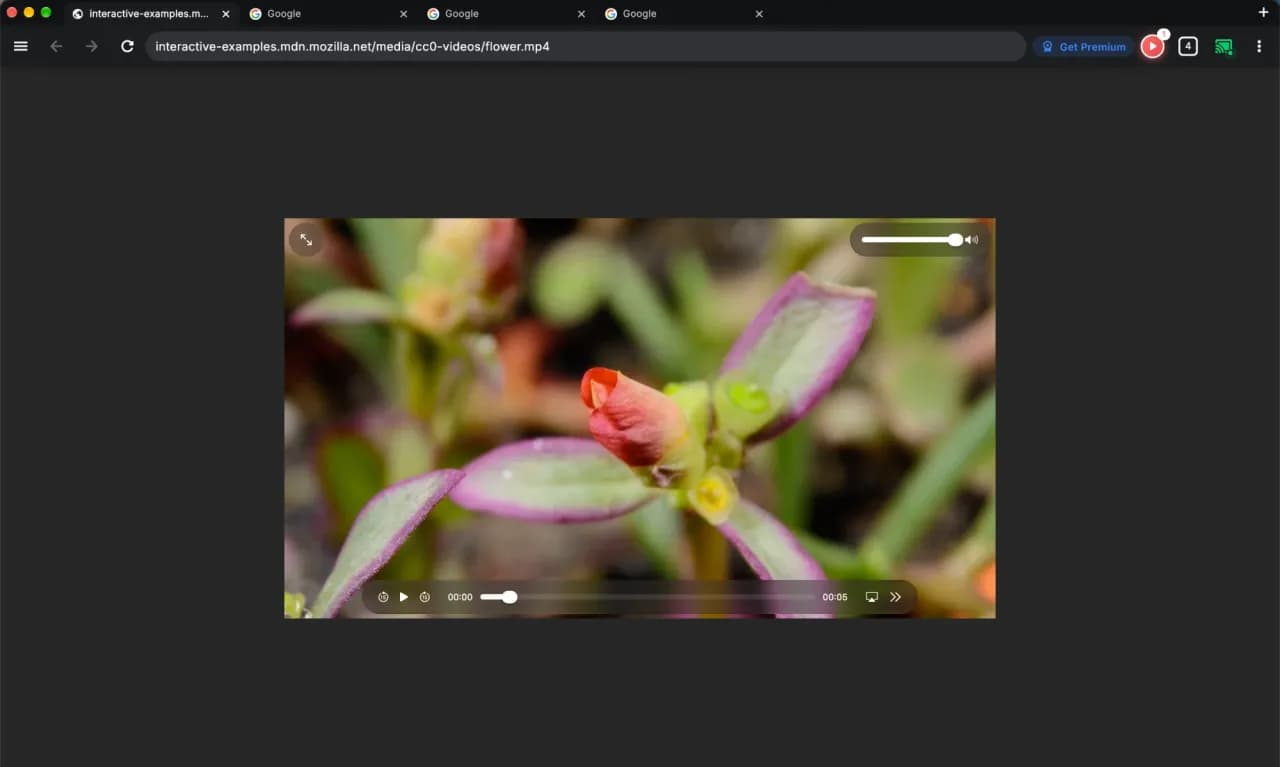
- Open castb.cc in the receiving browser. On a TV, use the TV's browser; on a computer, open a browser tab. Type the address directly into its address bar so you reach the receiver page.
- Enter the app's code in that browser. The direction is Mac app → receiving browser. Type the code the app shows, then connect.
- Choose the browser receiver and send the detected video. Check that the picture appears and the progress bar moves. Keep the Mac awake and connected while casting, and use the app to control the session.
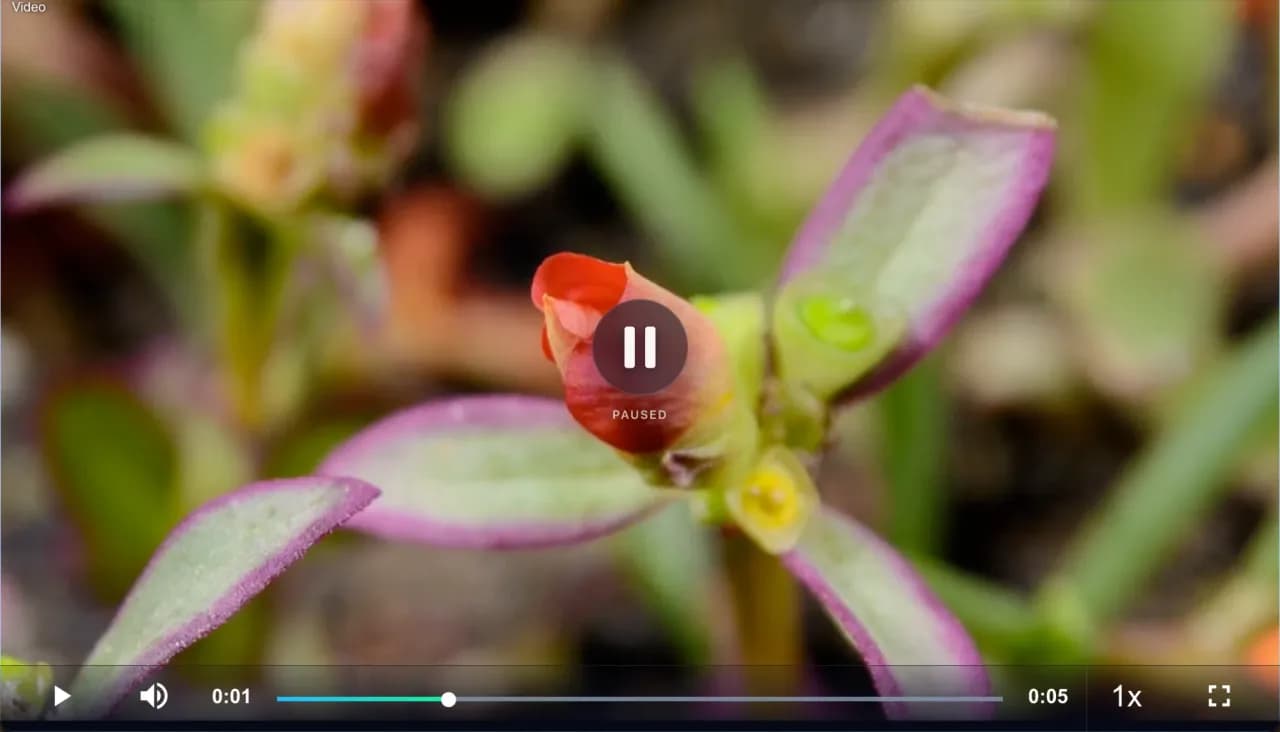
For receiver controls and setup details, see the full Web Receiver guide. Tip: try it in a computer browser first; if it plays there, the same steps work in your TV's browser.
Casting to a Samsung, Sony or LG TV directly
For a compatible DLNA or LG webOS TV, choose the TV from the Mac app's cast-button device list to send the detected video directly. See what DLNA means, the Samsung TV guide or the LG webOS guide for receiver requirements.
When your TV does not appear
First check that your Mac and TV are on the same Wi-Fi network, rather than one using guest Wi-Fi and the other using your home network. A TV connected by Ethernet can still share the local network with a wireless Mac. Restart the receiver or reopen its browser before trying again.
Guest networks and hotel Wi-Fi often isolate devices. A Web Receiver code gives you a manual connection route when automatic discovery is the problem, but it cannot bypass network isolation. If the network blocks device-to-device traffic, use a shared local network that allows it or ask the network operator about supported casting.
If it connects but one website's video won't play, try a different video. If that one plays, the problem is that site's video, not your connection.
What the Mac app cannot do
The Mac app has no Chromecast / Google Cast or in-app AirPlay support. For Chromecast or Google TV, follow the phone casting guide; for Fire TV, use the phone app and the Fire TV guide.
CastBrowser does not bypass DRM. Use a streaming service's official TV app or its own supported playback options for protected films and shows; opening that service inside a third-party browser does not make its protected video castable.
Prefer a cable? Connect your Mac to HDMI
Connect your Mac to the TV with HDMI, or use a suitable USB-C to HDMI adapter if your Mac needs one, then select that HDMI input on the TV. A cable is the simplest way to show your whole desktop or a presentation.
Still choosing between apps? Our Mac casting app comparison explains which tools send from a Mac and which turn it into a receiver.
Send a Web Video From Your Mac
CastBrowser is free, no account needed. Choose a supported TV or browser receiver.