Does Roku Have a Web Browser or Search Engine?
Roku does not provide an open-web browser or a supported way to install Chrome, Firefox, or Safari. Roku is built around streaming channels instead. If your goal is to watch a compatible video from a website, browse on your phone with CastBrowser and send the detected video to Roku over the local network.
The short answer
Roku has no open-web browser. Roku's current support page says its streaming players and Roku TVs do not provide the ability to browse the internet on the television. For website video, browse on your phone in CastBrowser and cast the detected compatible stream to Roku instead.
Browse on your phone, watch on your TV — cast web video with CastBrowser, free.
Why Roku Does Not Have a Web Browser
Roku's product model is based on streaming channels from its store, not general-purpose web browsing. Its official support documentation explicitly says Roku devices stream video and music from the internet but do not provide the ability to browse the internet on the television. That means there is no supported Chrome, Firefox, Safari, or hidden browser setting to enable. Read Roku's official answer.
How to Get a Browser on a Roku TV
There is no free or paid general-purpose web browser to install from the Roku Streaming Store. Apps that use “browser” in their name may be remote-control tools, screen-sharing utilities, or limited viewers; they are not equivalent to a desktop or phone browser. The free route is to browse the web on your phone and cast compatible non-DRM video to Roku.
The practical fix is to skip the TV browser entirely: open the site on your phone in CastBrowser, start the video, and cast it to your Roku over its native ECP protocol. Roku also doesn't support Google Cast, so this app route is the reliable way in — see casting to Roku and does Roku support Chromecast.
Can You Use a Search Engine on Roku?
Roku's built-in search is for entertainment: it can find channels, movies, shows, people, and related options inside the Roku ecosystem. It is not Google, Bing, or an open-web results page, and installing a search shortcut cannot add the missing general-purpose browser.
For an internet search, use Google, Bing, or another search engine on your phone. Open a relevant result inside CastBrowser; when the page contains a compatible non-DRM video, CastBrowser can detect that media and send the video to Roku. The search results and webpage remain on the phone, while Roku handles compatible playback.
Roku has no browser — cast the video from your phone instead. Get CastBrowser free.
What Roku Supports Instead
Choose the route that matches what you are trying to do:
- Official service content: install the service's Roku channel from the Streaming Store.
- Compatible non-DRM web video: open it in CastBrowser on your phone and cast the detected stream to Roku.
- Your own photos or videos: use a compatible media-casting route rather than trying to load a file in a TV browser.
- A webpage itself: Roku is not the right receiver; use screen mirroring where supported, or open the page on another browser-capable screen.
Install the Official CastBrowser Roku Channel
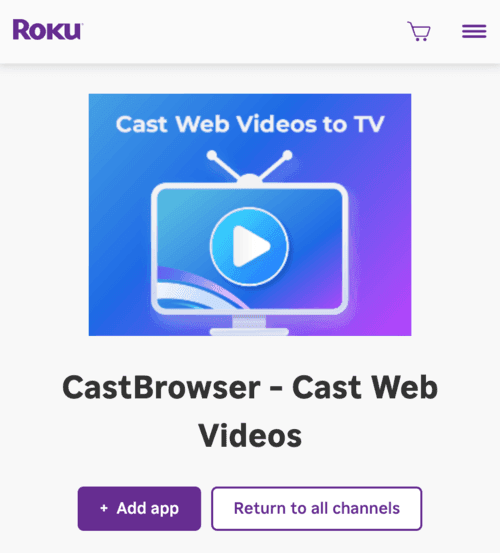
CastBrowser has an official Roku receiver channel. From a phone or computer browser, sign in to your Roku account and add the CastBrowser channel from the Roku Channel Store. Roku installs it on compatible devices linked to that account. The channel does not become a general web browser; it is the TV-side receiver for compatible video selected in the CastBrowser phone app.
How to Browse on Your Phone and Cast Video to Roku
- Install CastBrowser on your iPhone or Android phone.
- Connect the phone and Roku to the same local network.
- Open the website in CastBrowser and start the compatible video.
- Tap the cast icon, choose your Roku, and control playback from the phone.
CastBrowser sends a compatible detected video rather than the whole webpage. DRM-protected services may block this workflow; use their official Roku channels instead. For receiver setup and troubleshooting, see how to cast to Roku.
Why This Is Better Than a Roku Browser
- The phone handles the web: use a real touchscreen keyboard, bookmarks, and full webpage rendering.
- No remote typing: search and navigate on your phone keyboard, not a clumsy on-screen one.
- Roku handles playback: the television is used as the video receiver rather than a clumsy webpage viewer.
- Built-in ad blocking: CastBrowser's browser blocks ads on your phone before anything reaches the TV.
Frequently Asked Questions
How do I get an internet browser on my Roku TV?
Roku does not offer a real web browser and does not allow third-party browsers in its channel store, so there is no genuine way to browse the open web on a Roku. The few "browser" channels that exist are limited and cannot play most web video. If your goal is to watch online video, browse on your phone with CastBrowser and cast the detected video to your Roku over its native protocol instead.
Can I install Chrome, Firefox, or Safari on Roku?
No. Roku does not provide Chrome, Firefox, Safari, or another general-purpose browser through its Streaming Store. Roku devices are designed around channels and streaming apps rather than open-web browsing. To watch a compatible web video, browse on your phone and use a Roku-compatible casting app instead.
Can I use Google or another search engine on Roku?
Not as an open-web search engine. Roku search finds channels, movies, shows, people, and other entertainment in the Roku ecosystem. To search the open web, use Google or Bing on your phone; if a result contains compatible non-DRM video, open it in CastBrowser and send the detected video to Roku.
How can I watch a website video on Roku?
Open the website in CastBrowser on your phone, start the compatible non-DRM video so the app can detect it, tap the cast icon, and select your Roku. The phone handles the webpage while Roku handles video playback. Both devices must be on the same local network.
Is CastBrowser free?
Yes. CastBrowser is currently free, with no account required. It includes a built-in browser with ad blocking on your phone and can cast compatible, non-DRM web videos to a compatible TV at no cost.
Skip the TV Browser — Just Cast
Download CastBrowser for free, browse the web on your phone, and cast compatible web videos to your Roku, Smart TV, Chromecast, or Fire TV in seconds.