Can You AirPlay to a Fire Stick? How to Get iPhone Video on Fire TV
Find out which Fire TV devices have AirPlay and how to watch compatible iPhone videos on a Fire Stick.
Quick answer
Fire TV Sticks do not support AirPlay; some Fire TV smart TVs do; check their settings. To play iPhone video on a stick, use an app that talks to Fire TV directly: CastBrowser and the free CastBrowser TV Receiver. To mirror your whole screen, you need an AirPlay receiver app on the stick.
Get CastBrowser free and send compatible iPhone videos to your TV.
Does Fire TV support AirPlay?
The name Fire TV covers both plug-in streaming devices and televisions. A Fire TV Stick or Fire TV Cube does not have a built-in AirPlay receiver. Some Fire TV smart TVs do; check the AirPlay & HomeKit setting on your model.
| Device | AirPlay | How to get iPhone video on it |
|---|---|---|
| Fire TV Stick Lite, HD, 4K and 4K Max | Not built in | Use a compatible casting or receiver app |
| Fire TV Cube | Not built in | Use a compatible casting or receiver app |
| Fire TV smart TVs | On some models | Settings → Display & Sounds → AirPlay & HomeKit |
| Vega OS sticks | Not built in | Check app compatibility for the exact model |
Have a Fire TV smart TV? Turn on AirPlay
On a supported Fire TV smart TV, open Settings → Display & Sounds → AirPlay & HomeKit and turn on AirPlay. Amazon explains that not all Fire TV smart TVs support it.
AirPlay is Apple's wireless sharing technology; it needs a compatible receiver. Apple's instructions explain how to select an AirPlay-compatible TV. A Fire Stick's own software does not include that receiver. See our broader AirPlay TV guide for devices that do.
Amazon lists the Fire TV Stick 4K Select (2025), Fire TV Stick 4K – 3rd Gen (2026), and Fire TV Stick HD (2026) as Vega OS devices in its streaming device specifications. The CastBrowser TV Receiver listing requires Android 5.0 or later: it is a Fire OS app. On those three Vega OS sticks, check whether the Appstore offers it. AirPlay receiver apps may also be Fire OS apps, so check their compatibility on the device too.
Which Fire TV do you have?
On your Fire TV, open Settings → My Fire TV → About to see the model name. Check the year too: the 2024 and 2026 HD sticks have similar names but different operating systems.
| Model | OS | CastBrowser TV Receiver |
|---|---|---|
| 4K Max 2nd Gen (2023), 4K 2nd Gen (2023), 4K Plus (2025), HD (2024), Stick 3rd Gen and Lite | Fire OS | Yes, per the listing; check availability in your region |
| 4K Select (2025), 4K 3rd Gen (2026), HD (2026) | Vega OS | Check the Appstore |
How to get iPhone video on a Fire Stick
An iPad works the same way as an iPhone. CastBrowser sends compatible web video or a video file to the TV. The recommended route uses the CastBrowser TV Receiver on the TV.
- Install the receiver on the Fire TV. Open the Fire TV Appstore and search for CastBrowser TV Receiver, or open its Amazon Appstore listing. Install and open it. Availability depends on the device and region; check the listing for your model.
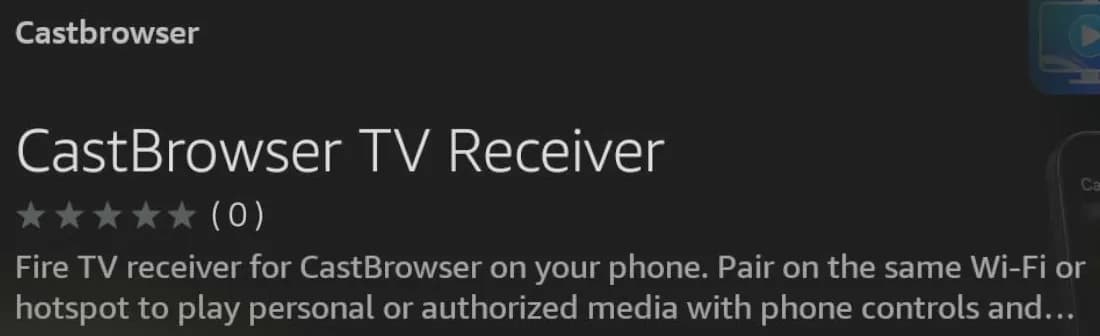
CastBrowser TV Receiver in the Appstore on a Fire TV Stick. - Install CastBrowser on your iPhone. Open it and allow Local Network access when iOS asks. If you declined, go to Settings → Privacy & Security → Local Network → CastBrowser and turn it on.
- Connect both devices to the same Wi-Fi. Avoid a guest network that prevents devices from seeing each other. Keep the receiver open on the TV.
- Find a video. Open a website in CastBrowser's browser and start a compatible video so the app can detect it, or choose a video from Photos or Files. Our local video guide covers files stored on your phone.
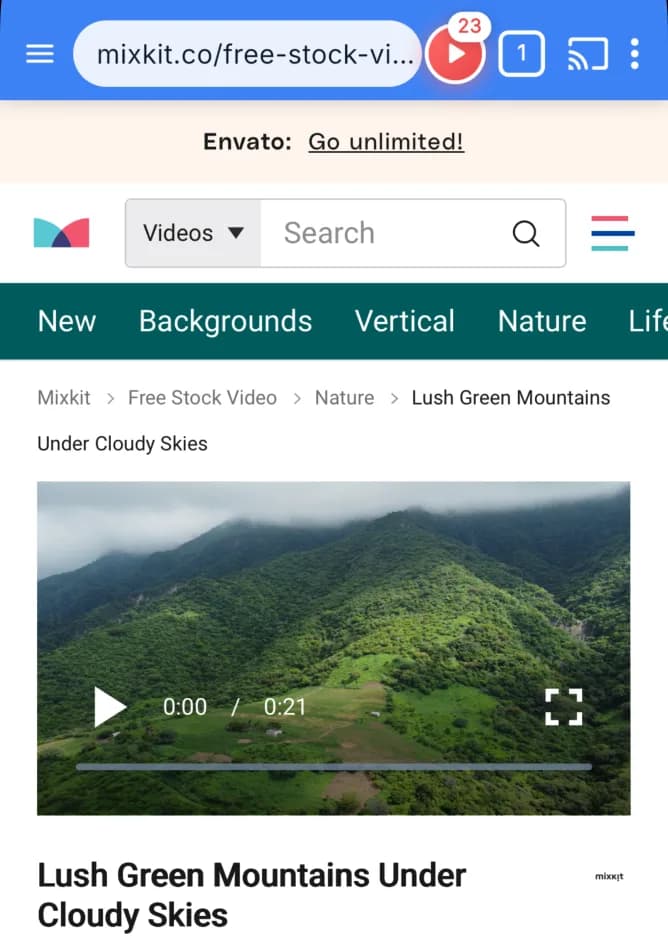
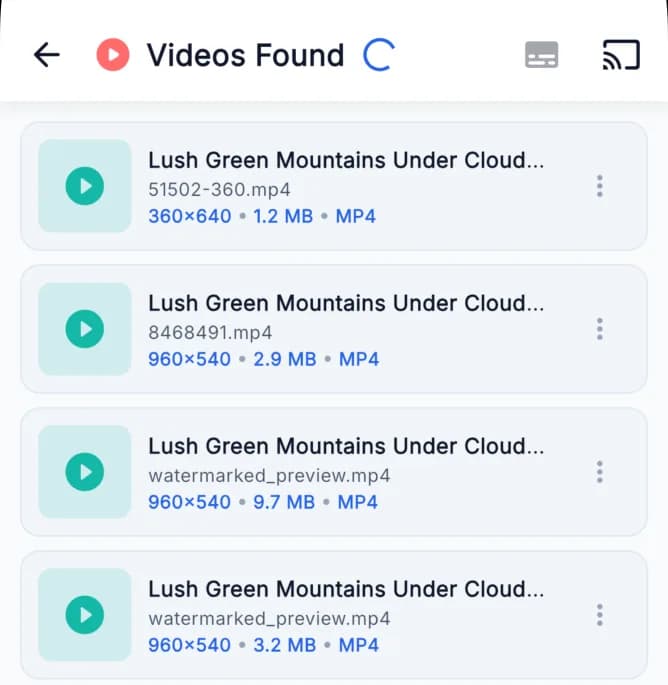
On iPhone, the red button counts the videos CastBrowser found on the page. Tap it to see them and pick one. - Tap Cast and choose the TV. Look for your receiver in the device list. If it does not appear, check the troubleshooting steps below.
- Pair the devices. Select your phone on the TV and accept its request in CastBrowser; or tap the TV on the phone. You can also use the three-character code shown on the phone: type that code on the TV. The code goes from phone to TV.
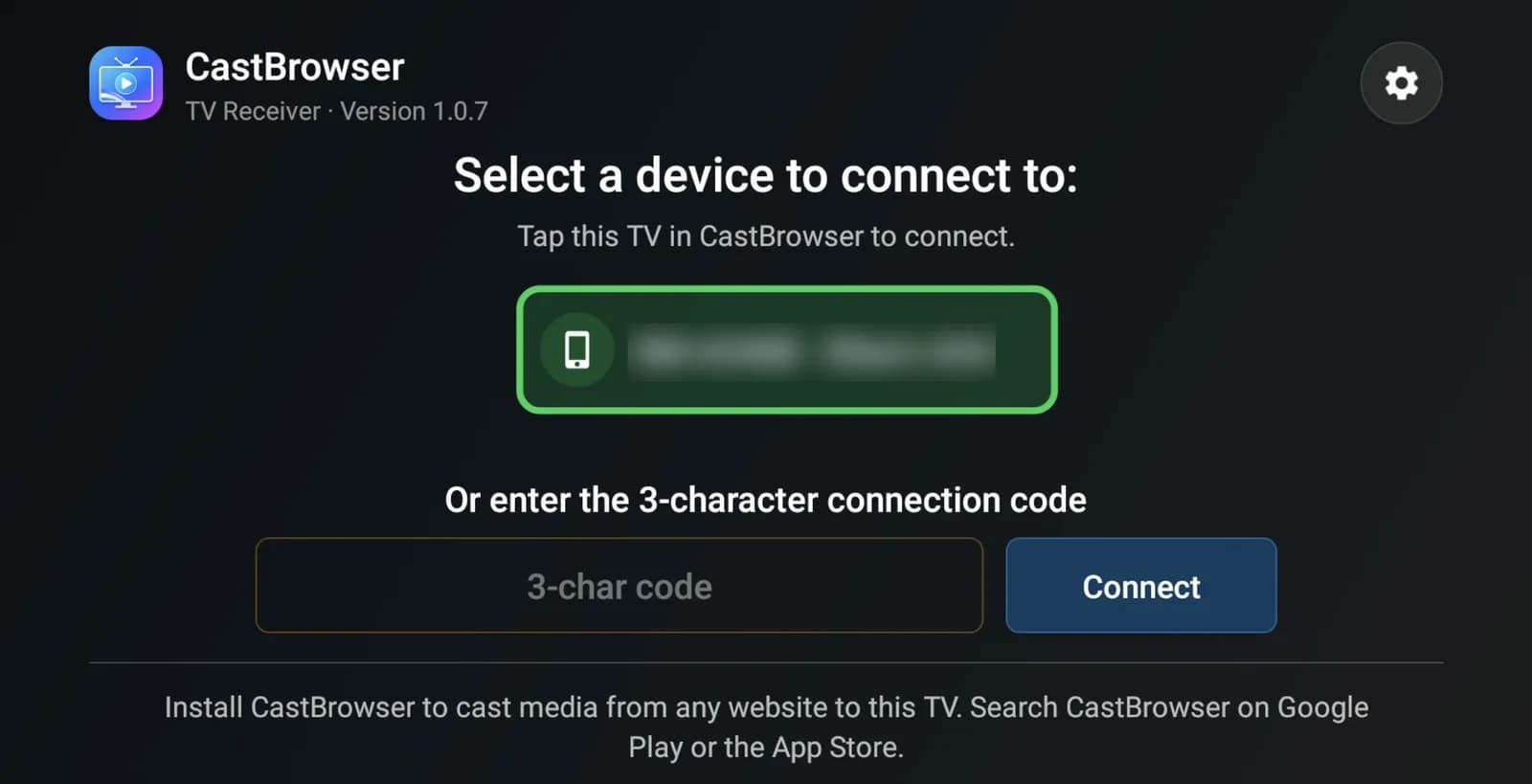
The receiver lists phones running CastBrowser on the same Wi-Fi (phone name blurred). Below it, type the code your phone shows. - Start playback. Use the phone to pause, seek, change the volume or switch available subtitles. The TV receiver also has audio-track, buffer and subtitle-style settings.
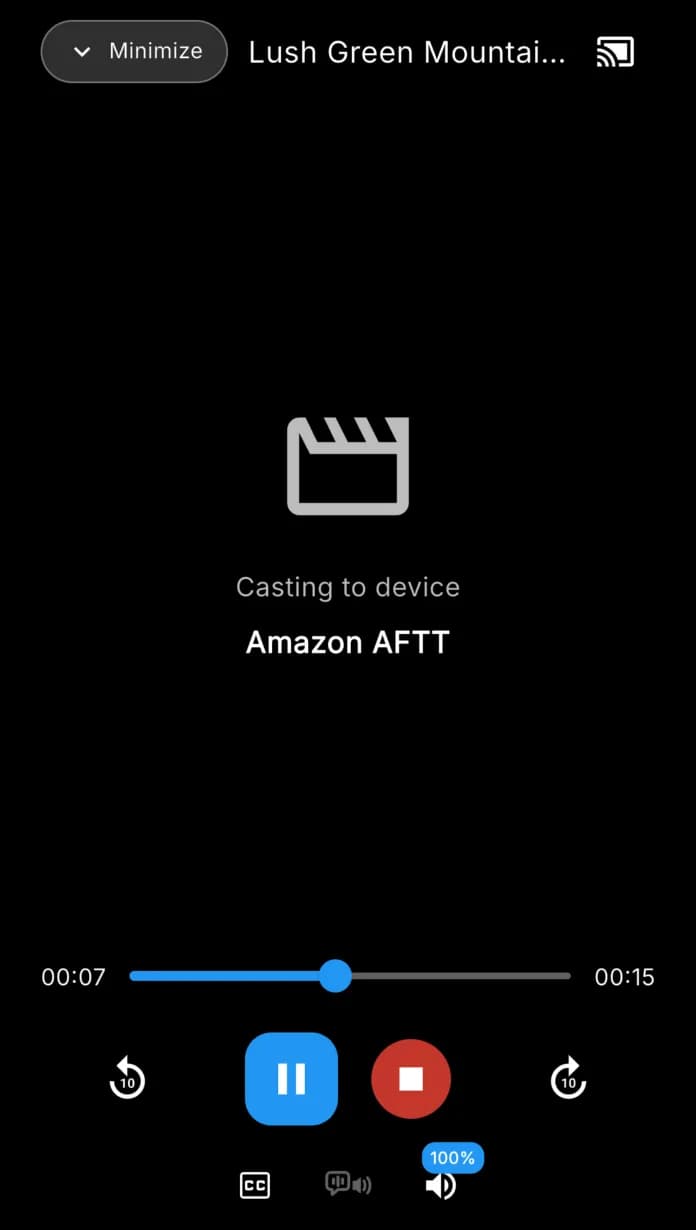
iPhone controls while casting to a Fire TV Stick through the receiver. The TV appears by its model name (here, Amazon AFTT).
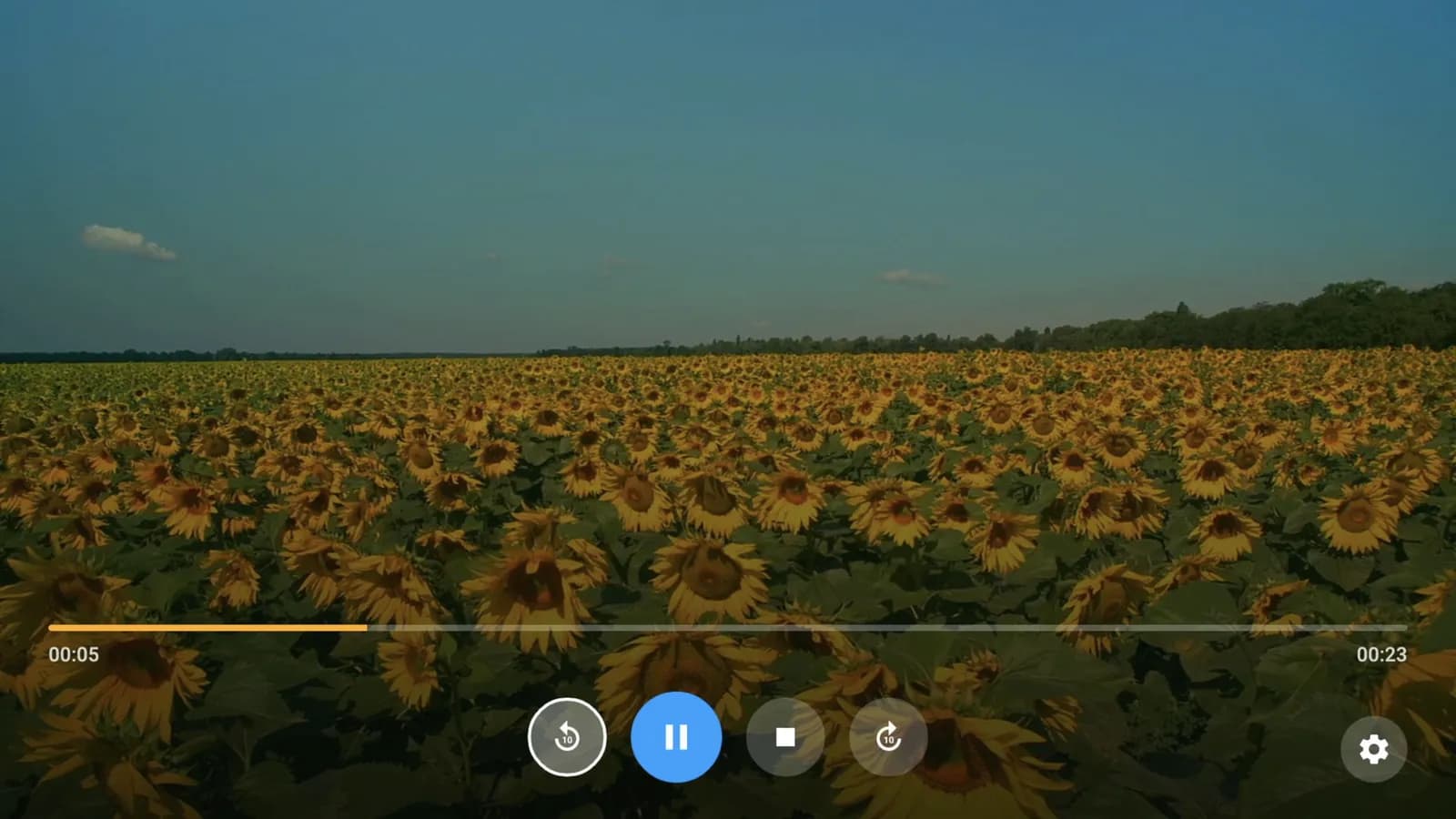
If you cannot see a detected video, start playback on its page first. Some sites use protected players, and some video formats are not supported by the TV. CastBrowser sends the video rather than a copy of your iPhone screen, so menus and notifications stay on your phone.
Ready to try it? Get CastBrowser on your phone.
Receiver app vs Fire TV's built-in player
CastBrowser can also offer the Fire TV built-in player for basic playback without installing the TV receiver. It has fewer controls, so use the receiver when it is available for your device.
| Feature | CastBrowser TV Receiver | Fire TV built-in player |
|---|---|---|
| Install on TV | Yes | No |
| Volume from phone | Yes | No |
| Subtitles | Yes | No |
| Format support | Wider | Narrower |
| Note | — | May stop working on newer models |
For Android phones and other Fire TV setups, read the Fire TV casting guide.
Want your whole iPhone screen? Use an AirPlay receiver app instead
CastBrowser sends a video; it does not mirror your entire iPhone screen. For a presentation, a photo app or another screen you want everyone to see, look for an AirPlay receiver app compatible with your exact Fire TV model in its Appstore. Open that app on the TV, then follow its instructions and use Screen Mirroring in iPhone Control Center. Apple explains the iPhone controls.
Mirroring sends a re-encoded view of your screen, including notifications. It is useful for photos and slides but can introduce delay and compression. Sending a compatible video directly avoids re-encoding the whole screen and lets you continue using your phone. The screen mirroring guide explains the trade-offs.
What plays and what doesn't
- Web video: compatible MP4 files and HLS streams, including live streams, can be detected from a web page.
- Phone videos: choose a compatible video stored in Photos or Files.
- Protected services: Netflix, Disney+, Prime Video and similar protected video cannot be sent from a browser. Use the service's own app on the Fire TV instead.
- Codec limits: a file extension alone does not guarantee playback. The receiver must support the video and audio codecs inside the file. Try a compatible MP4 if a file fails.
For browsing directly on the television, see how to use a browser on Fire TV. For other device options, see casting from an iPhone to a TV.
Fire TV not showing up on your iPhone?
If your Fire TV doesn't show up in CastBrowser, try these checks:
- Turn on Local Network access for CastBrowser in iPhone settings.
- Put both devices on the same Wi-Fi network. If discovery fails on a dual-band router, try the same band as well.
- A guest or hotel network may isolate devices from one another. Ask the network administrator whether local device connections are allowed.
- Open CastBrowser TV Receiver on the TV and leave it on its pairing screen.
- Temporarily disconnect a VPN on the phone and scan again.
- Restart the iPhone and Fire TV, then reopen both apps and retry pairing.
What the receiver message means
The receiver shows a status message while the two devices connect:
- “Check your phone”: open CastBrowser on the phone and accept the connection request.
- “Connection declined on phone”: start the connection again from CastBrowser and accept it when prompted.
- “Could not connect to phone”: open CastBrowser on the phone and confirm that both devices are on the same Wi-Fi.
- Asked for a code? Find the three-character code on the phone and type it on the TV. It is not a code from the TV to enter on the phone.
If the receiver still does not appear, check whether the Appstore offers it for your exact model. The built-in player may work for basic playback; alternatively, the Web Receiver at castb.cc can be opened in a compatible TV browser.
Related guides
Get iPhone Video on Your TV
Cast compatible web and phone videos with CastBrowser, free to download and use.