Pixel's built-in Cast button reaches Google Cast devices. Roku and most Samsung TVs are not Google Cast receivers. CastBrowser can send compatible web videos and phone files to them over Wi-Fi; it does not mirror your screen.
Get CastBrowser free and send compatible videos from your phone to your TV.
Google's Pixel instructions place screen casting under Google Cast. The Cast panel lists compatible Google Cast receivers, including Chromecast, Google TV and TVs with Chromecast built in. The page doesn't mention Miracast. A TV can be smart and still use a different way to receive video.
CastBrowser uses Roku's External Control Protocol and its own Roku channel to play compatible videos. You need both: the phone app and the channel on the Roku. Keep the Roku remote nearby for the first connection.
Connect to the same network. Put the Pixel and Roku on the same home Wi-Fi network.
Allow external control. On the Roku, open Settings → System → Advanced system settings → External control and select Default or Permissive.
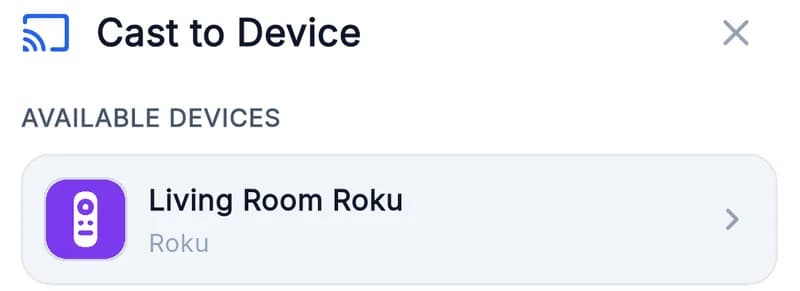
Open CastBrowser and pick the Roku. Tap the cast icon and select your Roku from the device list.A Roku in CastBrowser's device list on a Pixel, the device the Pixel's own Cast panel can't show (device name changed).
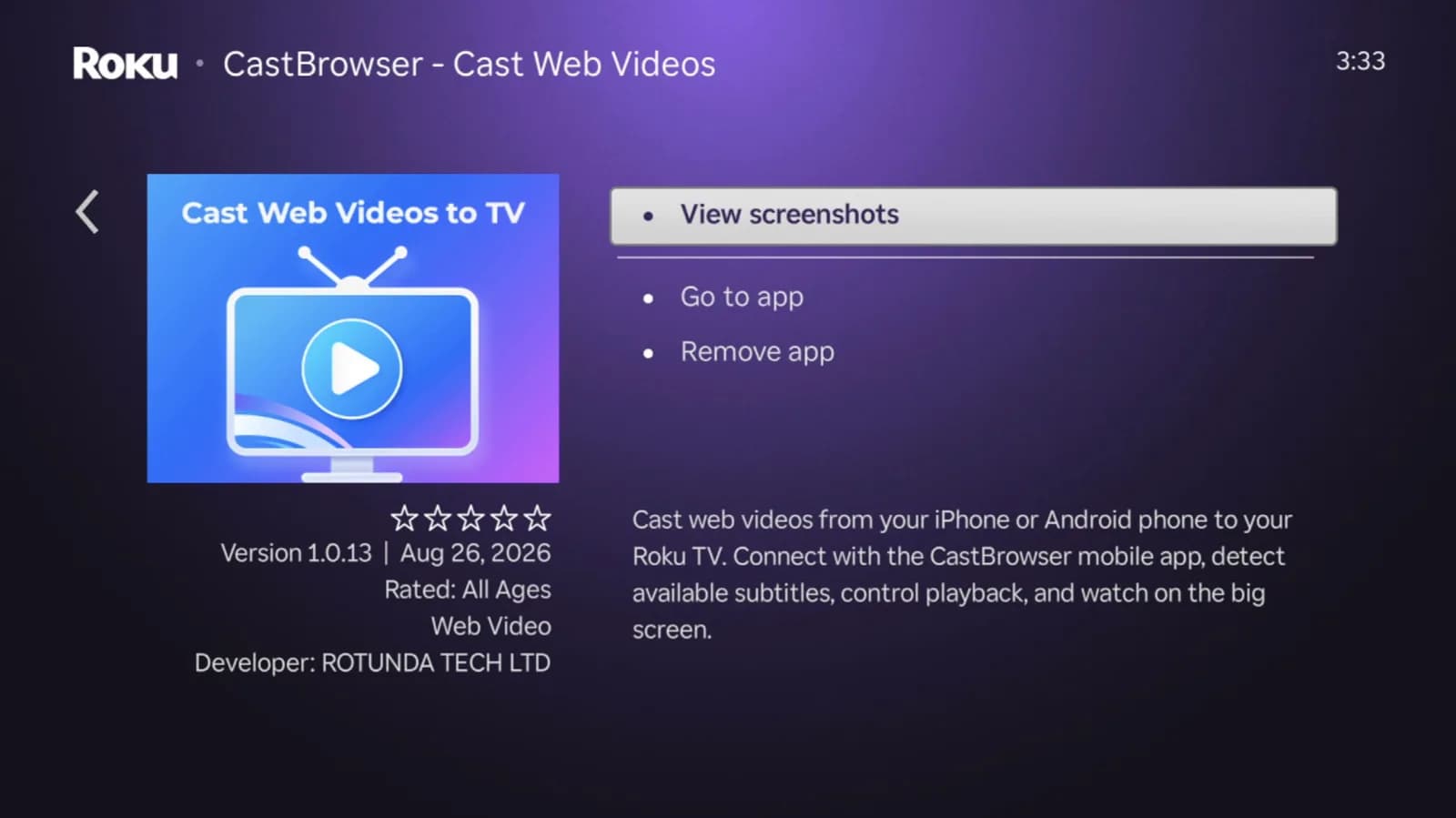
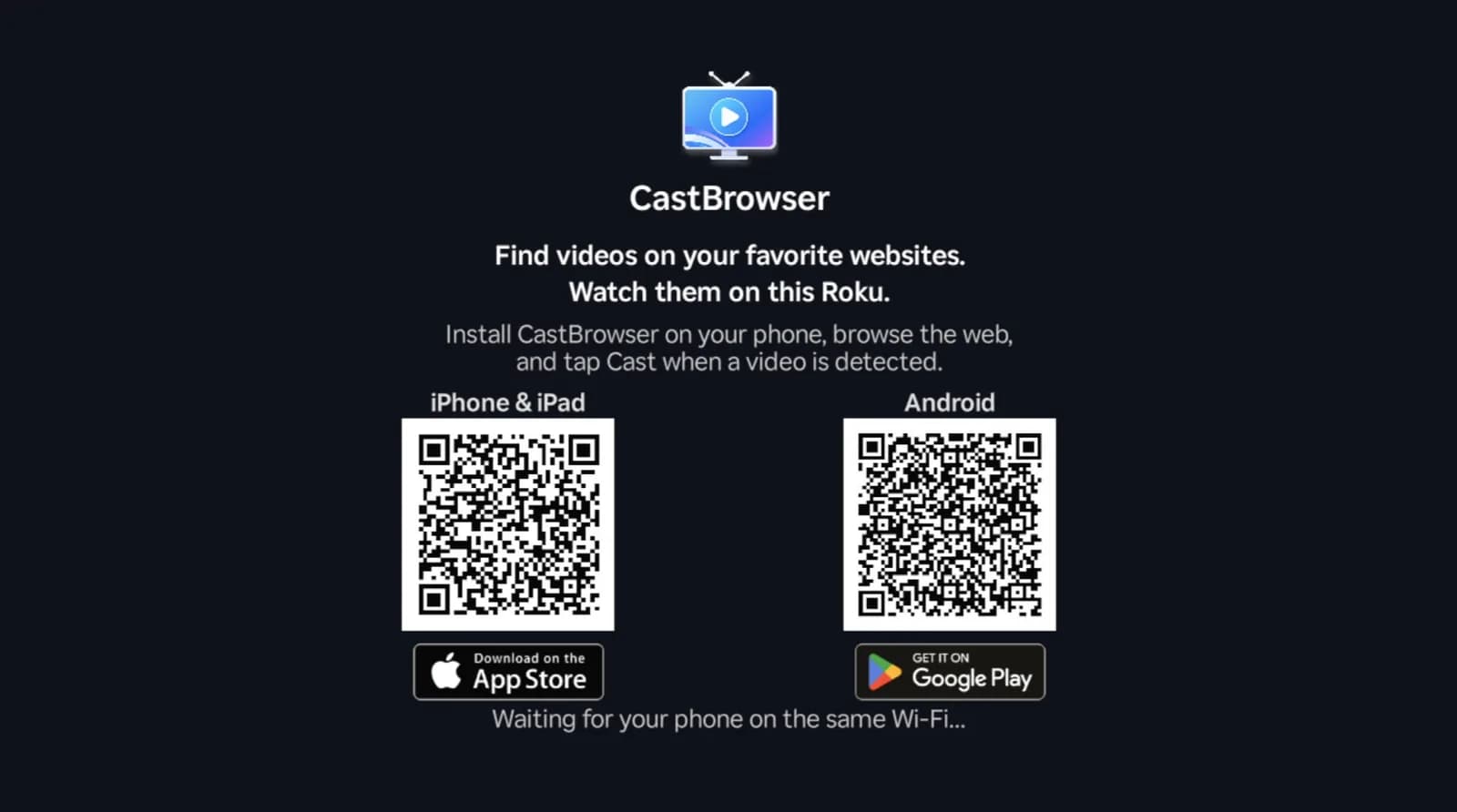
Add the CastBrowser Roku channel. On the first connection, the phone opens the channel's Channel Store page on the Roku. Add it with the remote; this is needed only once. You can also add the CastBrowser channel from the Roku Channel Store in a browser, signed in to the Roku account linked to your device.The CastBrowser channel in the Roku Channel Store, shown here after it was added.When you open the channel, it waits for a phone running CastBrowser on the same Wi-Fi.The CastBrowser channel on a Roku, ready for your phone (device name hidden).
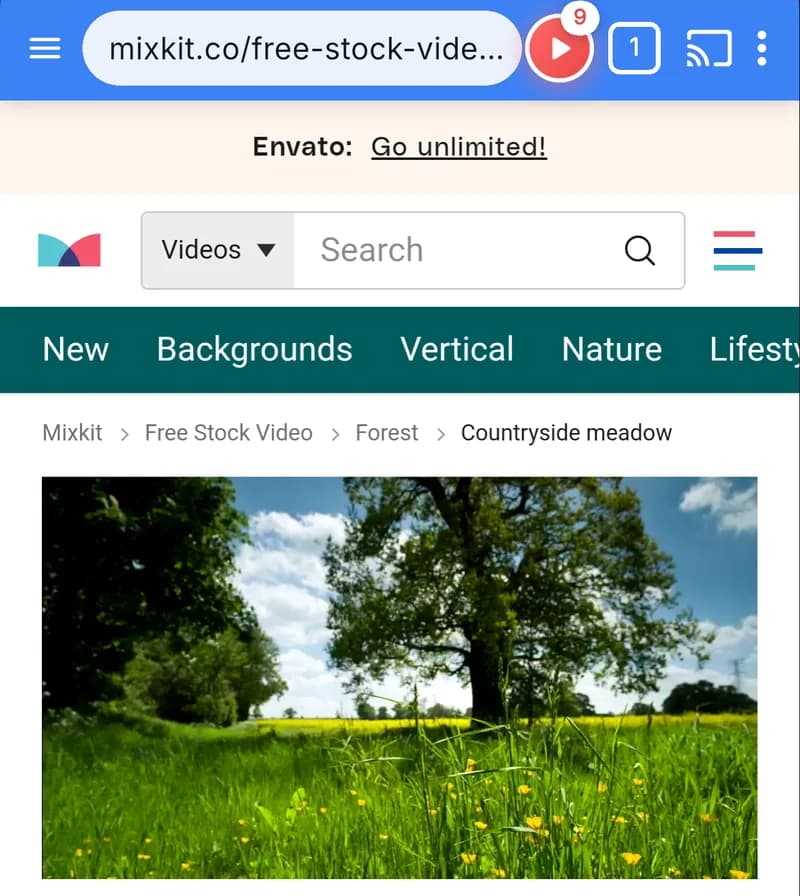
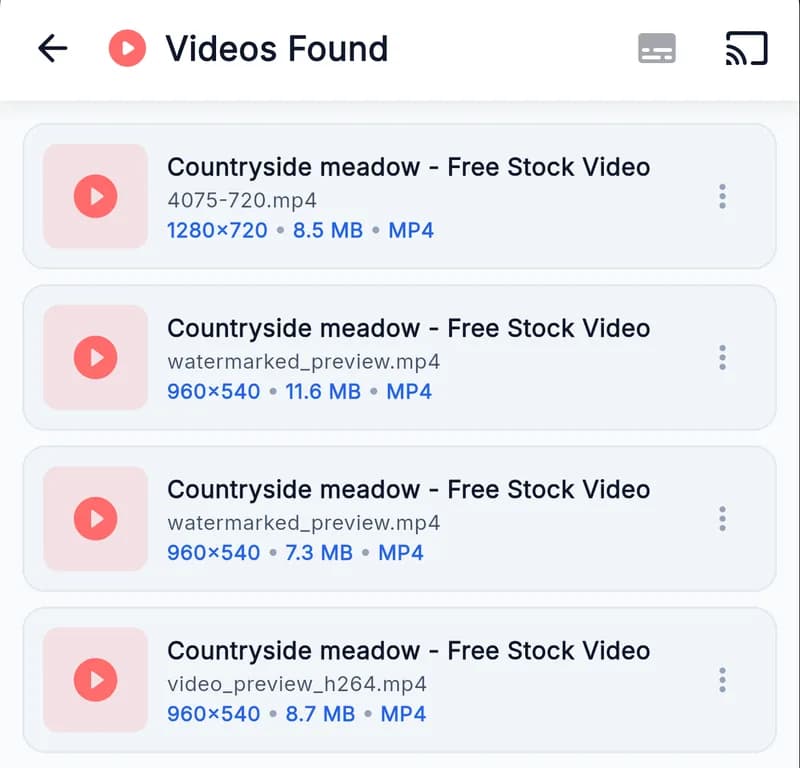
Open a video. Browse to a compatible website in CastBrowser and start its video so the app can detect it. Tap the red video button and choose a detected video, or pick a video stored on the phone.
On a Pixel, the red button counts the videos CastBrowser found on the page. Tap it to pick one.
Play and control the video. The phone controls include volume and switching available subtitles. The Roku must be able to play the selected video format.A web video cast from the phone, paused in the CastBrowser channel on a Roku.
How to cast from a Pixel to a Samsung TV (without Chromecast)
First check the TV's model and year. If it is a 2026 Samsung model with Google Cast, or a 2024–2025 model that got it in a software update, your Pixel's built-in Cast button may already find it.
For a Samsung Tizen TV without Google Cast, CastBrowser sends video through DLNA, the TV's own media renderer. Nothing needs to be installed on the TV. On some 2015–2017 models you may need to enable media sharing under Settings → General → Network → Expert Settings; menus vary by model.
Connect the Pixel and Samsung TV to the same Wi-Fi network, and turn on the TV.
Open CastBrowser on the Pixel, tap the cast icon and choose the Samsung TV. If the TV asks whether to allow the phone, accept.
Open a compatible web video in the browser, or choose a video file on the phone, and pick it to start playback on the TV.
Use the phone's playback controls. Phone volume works when the TV's DLNA renderer exposes a volume control; subtitle switching isn't available on the DLNA route.
Smart View is a Samsung Galaxy feature, so its instructions don't apply to a Pixel. The Smart View alternative guide covers what replaces it.
What about other TVs?
Google TV or Chromecast: your Pixel can already use Google Cast. CastBrowser also supports Google Cast, which helps when a website has no Cast button.
LG webOS: CastBrowser offers webOS and DLNA routes on compatible TVs. See the LG casting guide.
Fire TV: follow the Fire TV guide; the route depends on the model.
TV with a compatible browser: open castb.cc on the TV and use CastBrowser's Web Receiver. The phone shows a three-character code; type it on the TV. See cast to a browser.
Casting vs screen mirroring on a Pixel
CastBrowser sends a compatible video or phone file to the TV; it does not copy the Pixel's entire screen. To show an app or a presentation, see screen mirroring vs casting. On a Pixel 8 or later, Google also documents a wired connection that mirrors the whole screen to a TV through a USB-C to HDMI or DisplayPort cable.
Web video: compatible MP4 files and HLS streams can be detected on a web page.
Phone videos: choose a compatible video stored on the phone.
Protected services: Netflix, Disney+, Prime Video and similar protected video cannot be sent from a browser. Use the service's own TV app or its Cast button.
Codec limits: the TV must support the video and audio codecs inside the file. If a video fails, try another detected format.
Pixel not finding the TV?
Check the network. Put both devices on the same Wi-Fi network and band. Guest and hotel networks may isolate devices from each other.
Pause a VPN. A VPN on the phone can block local discovery. Disconnect it and refresh the device list.
Check Roku External Control. Set it to Default or Permissive, and confirm the CastBrowser channel is on the Roku account linked to that device.
Check Samsung media sharing. Turn on the media sharing or DLNA setting in the TV's network settings, especially on 2015–2017 models.
Restart and retry. Restart the phone, the TV or Roku, and the router, then refresh the device list.