How to Cast VLC Videos to a TV: Roku, Samsung, LG, Fire TV and More
VLC plays almost any file on your phone, but its cast button only reaches Chromecast. Here is how to get the same video onto the TV you actually have.
Quick answer
VLC's built-in casting sends video to Chromecast devices. Roku, Fire TV and most Samsung and LG TVs are not Chromecast receivers, and VideoLAN doesn't offer VLC for Roku, Samsung or LG TVs. To play the same file on one of those TVs, open it in CastBrowser on your phone and cast it over Wi-Fi. CastBrowser is not a VLC plugin: it plays the file itself, and the TV must support the file's format.
Get CastBrowser free and play your phone's video files on Roku, Samsung, LG and more.
Which TVs VLC can cast to
VideoLAN describes VLC's casting in terms of Chromecast. The VLC for iOS page lists rendering through Chromecast, the VLC for Android documentation shows the cast icon appearing when a receiver such as a Chromecast is detected, and the VLC 3.0 release notes name Chromecast as the streaming target. If your TV isn't a Chromecast receiver, the cast icon has nothing to find.
Installing VLC on the TV is the other route, and it depends on the platform. VideoLAN's official downloads include Apple TV, and VLC for Android supports Android TV, but there is no official VLC for Roku, Samsung (Tizen) or LG (webOS) TVs.
| Your TV | VLC's cast icon finds it? | Official VLC app on the TV? | Best way to play your file |
|---|---|---|---|
| Chromecast, Google TV or Chromecast built-in | Yes | Yes on Android TV and Google TV | Use VLC's own cast icon |
| Apple TV | No | Yes, VLC for Apple TV | Install VLC on the Apple TV |
| Roku TV and Roku sticks | No | No | CastBrowser and its Roku channel, or Roku Media Player for USB and media servers |
| Samsung (Tizen) | Only models with Google Cast (select 2026, some 2024–2025) | No | CastBrowser over the TV's DLNA renderer |
| LG (webOS) | Check the model | Not in VideoLAN's downloads | CastBrowser's webOS or DLNA route |
| Fire TV | No | Check the Amazon Appstore | CastBrowser; the route depends on the model |
How to play a VLC video on your TV with CastBrowser
VLC for Android plays videos from your phone's storage, so the same file is available to CastBrowser. You don't cast from inside VLC; you open the file in CastBrowser instead.
- Put the phone and TV on the same Wi-Fi. Guest and hotel networks often block devices from seeing each other.
- Open the video in CastBrowser. Use one of these:
- Open the menu, tap Phone Files and pick the video.
- For a file in another folder, such as Downloads, tap Browse files and choose it in the system file picker. Large files are copied first, so leave enough free space.
- On Android, use Open with or Share in your file manager and choose CastBrowser. The app asks you to confirm with Cast this file.
- On iPhone, videos added to VLC are usually in the Files app under On My iPhone. Pick them with Browse files, or use Open in from the Files app.
- Choose your TV. Tap the cast icon and pick the TV from the device list. The device-specific setup is below.
- Play and keep the app open. The phone serves the file to the TV, so leave CastBrowser open until the video finishes.
VLC on Roku: what works
Roku has no VLC channel, and VLC can't cast to a Roku. You have two working routes, depending on where the file is.
The file is on your phone
CastBrowser uses Roku's External Control Protocol and its own Roku channel. You need both the phone app and the channel.
- On the Roku, open Settings → System → Advanced system settings → External control and select Default or Permissive.
- In CastBrowser, tap the cast icon and pick the Roku. On the first connection the phone opens the channel's page on the Roku; add it with the remote. You can also add the CastBrowser channel from the Roku Channel Store.
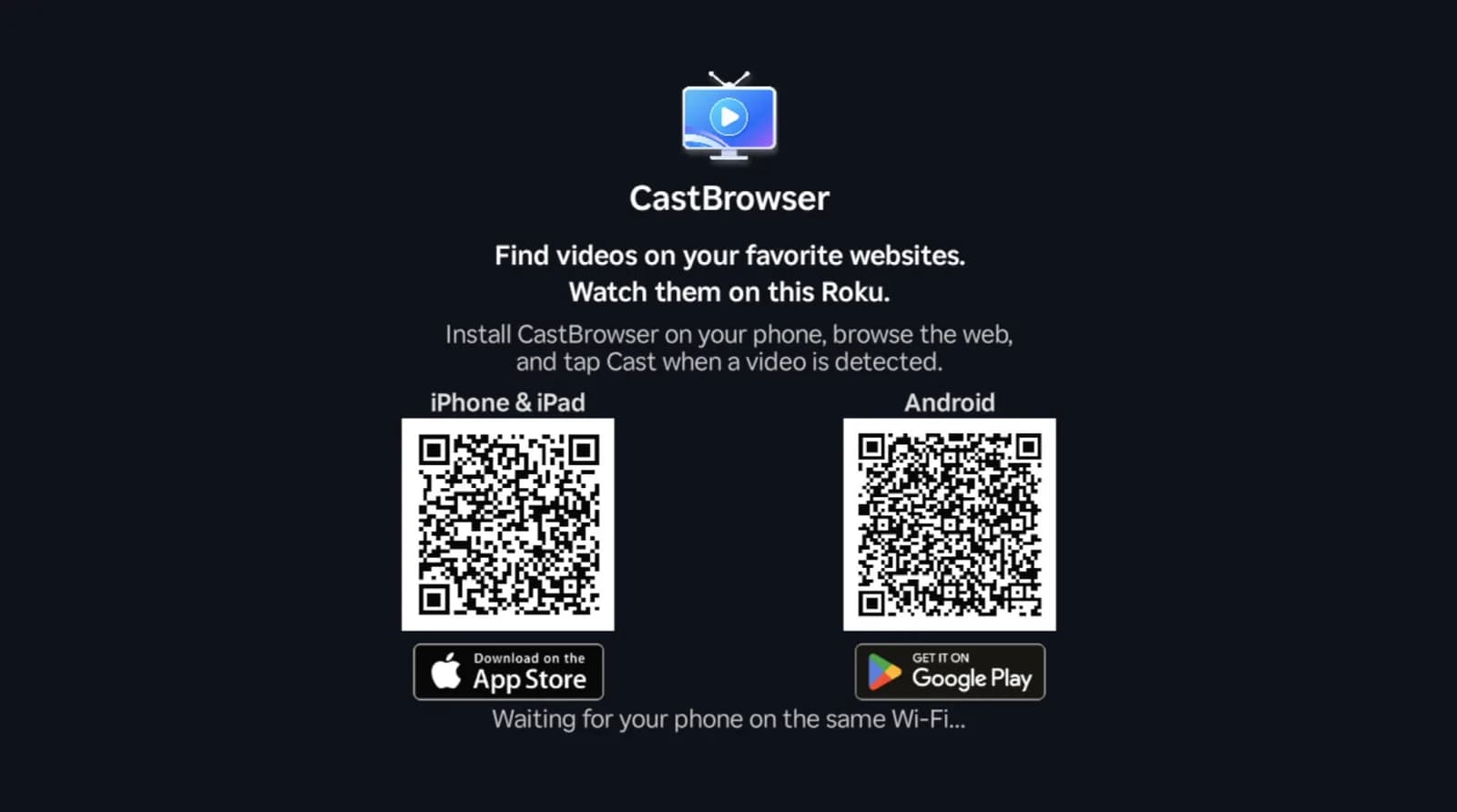
The CastBrowser channel on a Roku, waiting for your phone (device name hidden). - Open the video with Phone Files, Browse files or Open with, as above. It plays in the CastBrowser channel, controlled from the phone.

A video cast from the phone, paused in the CastBrowser channel on a Roku.
The file is on a USB drive or computer
Roku's own player is the better tool here. Roku Media Player plays files from a USB drive or from a DLNA media server on your network, such as Plex or Serviio. Roku lists H.264 video in MKV, MP4 and MOV files, adds HEVC on 4K models, and picks up .srt or .vtt subtitles saved next to the video with the same name. AVI is not on Roku's list.
VLC on a Samsung TV
There is no official VLC for Samsung's Tizen TVs. Most Samsung TVs aren't Chromecast receivers either; Samsung has added Google Cast to select 2026 models, according to Samsung's announcement, and some 2024–2025 models are getting it in a software update. On those, VLC's cast icon may find the TV.
On every other Samsung, CastBrowser sends the file to the TV's built-in DLNA renderer, with nothing to install on the TV. Open the video, tap the cast icon and pick the Samsung; accept the prompt on the TV if one appears. On some 2015–2017 models you may need to turn on media sharing in the network settings first. The TV's player decides which formats play. More detail is in the Samsung TV guide.
VLC on an LG TV
VLC isn't part of VideoLAN's official downloads for LG's webOS. CastBrowser reaches compatible LG TVs through webOS's own media player, or through DLNA. On the webOS route, the TV asks you to allow the phone the first time. Steps are in the LG casting guide.
Chromecast, Fire TV and Apple TV
- Chromecast and Google TV: use VLC's own cast icon. VideoLAN's release notes say VLC can stream to Chromecast even in formats the device doesn't support natively.
- Fire TV: Fire TV isn't a Chromecast receiver. CastBrowser's route depends on the model; see the Fire TV guide.
- Apple TV: install VLC for Apple TV and play the file from your network there.
Ready to try it? Get CastBrowser on your phone.
Want only the VLC video on the TV, not your whole screen?
Screen mirroring copies everything on your screen, including notifications and other apps. Casting sends only the video, and the phone or computer stays free for other things.
- From a phone: casting the file with CastBrowser, as above, puts only the video on the TV.
- From a computer to a Chromecast: VLC can stream the video itself to the Chromecast instead of mirroring the screen.
- From a computer to another TV: copy the file to a USB drive or a DLNA media server and play it with the TV's own media player, or copy it to your phone and cast it.
The full difference is explained in screen mirroring vs casting.
Why a video plays in VLC but not on the TV
VLC decodes almost everything on your phone. When you cast, the TV's own player has to decode the file, and TVs support fewer formats.
- On iPhone: before sending a phone video to a Chromecast or Roku, CastBrowser checks its format. A video outside a widely supported profile (H.264 up to 1080p, standard dynamic range, AAC or MP3 audio), such as an HEVC, HDR or 4K camera video, is converted to an MP4 first while the app shows “Optimizing video for your TV”. Files the iPhone can't read itself, including most MKV files, are sent as they are.
- On Android: the file is sent as it is. If it won't play, try an H.264 MP4 copy, or a TV with broader format support.
- Sound but no picture, or the reverse: the TV supports the container but not the video or audio codec inside it.
More on phone files is in the local video casting guide.
TV not showing up?
- Check the network. Use the same Wi-Fi network, and pause any VPN on the phone; both can block local discovery.
- Roku: set External control to Default or Permissive, and make sure the CastBrowser channel is added.
- Samsung and LG: turn on the TV's media sharing or DLNA setting, and accept the connection prompt on the TV.
- Restart and refresh. Restart the phone, TV and router, then refresh the device list.
Related guides
- Cast local video, photos and audio files to a TV
- Cast to Roku from iPhone or Android
- What is DLNA on a TV?
Play Your Videos on Any TV
Cast compatible phone videos to Roku, Samsung, LG and more with CastBrowser, free to download with no account.