How to Show iPhone Photos on Your TV
Four ways to get holiday shots and family photos onto the big screen, and how to pick the right one for the TV you actually own.
Quick answer
- Apple TV or an AirPlay TV: open the photo, tap Share → AirPlay and pick the TV.
- Roku without AirPlay, Chromecast or an older smart TV: use a free app such as CastBrowser. Tap the photo, choose the TV, done. iPhone HEIC photos are converted to JPEG automatically.
- No Wi-Fi: plug in a USB-C to HDMI cable on iPhones with USB-C video output (iPhone 15 and later, except the 16e and 17e), or Apple's Lightning Digital AV Adapter on older models.
TV without AirPlay? Get CastBrowser free and show your photos on it.
Which method works with your TV?
| Your TV | Easiest way | Also works |
|---|---|---|
| Apple TV, or a TV with AirPlay | AirPlay from the Photos app | HDMI cable |
| Chromecast or Google TV | CastBrowser, or the Google Photos app | HDMI cable |
| Roku without AirPlay | CastBrowser and its free Roku channel | HDMI cable |
| Fire TV Stick or Fire TV smart TV | Amazon Photos app if your photos are backed up there; AirPlay on Fire TV smart TVs that support it | HDMI cable |
| Older Samsung, LG, Sony or other smart TV | CastBrowser over DLNA or the TV's browser | HDMI cable |
Not sure whether your TV has AirPlay? Look for an AirPlay or Apple AirPlay and HomeKit entry in its settings, or check our list of TVs that support AirPlay.
Method 1: AirPlay from the Photos app
- Connect the iPhone to the same Wi-Fi network as the TV.
- Open Photos and tap the first photo you want to show.
- Tap the Share button, then AirPlay, and choose your TV. If the TV shows a code, type it on the iPhone.
- Swipe left on the iPhone to move to the next photo. The TV follows along.
- To stop, tap the AirPlay icon at the top of the screen and choose your iPhone again.
To show a Memory or an album slideshow with music, start it first, then turn on Screen Mirroring in Control Center so the TV shows exactly what the phone does. Apple's AirPlay guide has screenshots of each control. Own a Roku? Here is how to AirPlay to a Roku.
Method 2: TVs without AirPlay, with CastBrowser
CastBrowser is a free iPhone and Android app that sends photos, videos and web videos to TVs. For photos, that means Chromecast, Roku, LG and Samsung smart TVs, DLNA TVs and TV browsers. Your photos go straight from the phone to the TV over your Wi-Fi; nothing is uploaded to a cloud service. Here is the real flow on an iPhone:
- Open Phone Files. Install CastBrowser, open the menu and choose Phone Files, then the Photos filter. The first time, iOS asks for photo access. Choose Select Photos if you only want to share a few, or Allow Full Access to browse everything.
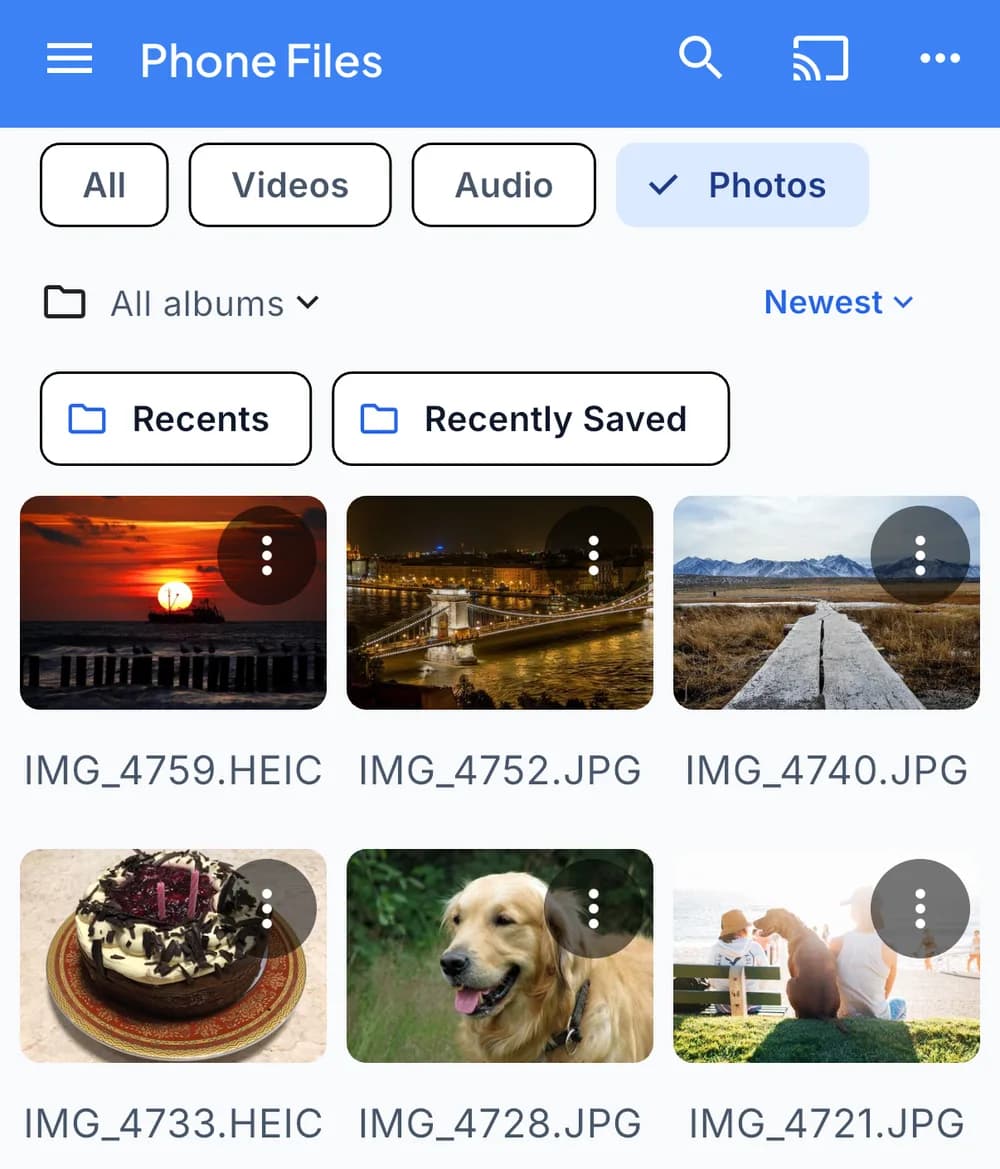
Photos from the iPhone library in CastBrowser, newest first. HEIC and JPEG files both appear. Sample photos from Wikimedia Commons, public domain (CC0). - Tap a photo and choose your TV. Chromecasts, Rokus, LG TVs and DLNA smart TVs on the same Wi-Fi appear by name. Allow Local Network access if iOS asks; without it the list stays empty. Using the TV's web browser instead? Choose Web Receiver on the phone, open castb.cc in the TV browser and type the three-character code your phone shows; the TV then appears in this list. Our Web Receiver guide has screenshots.
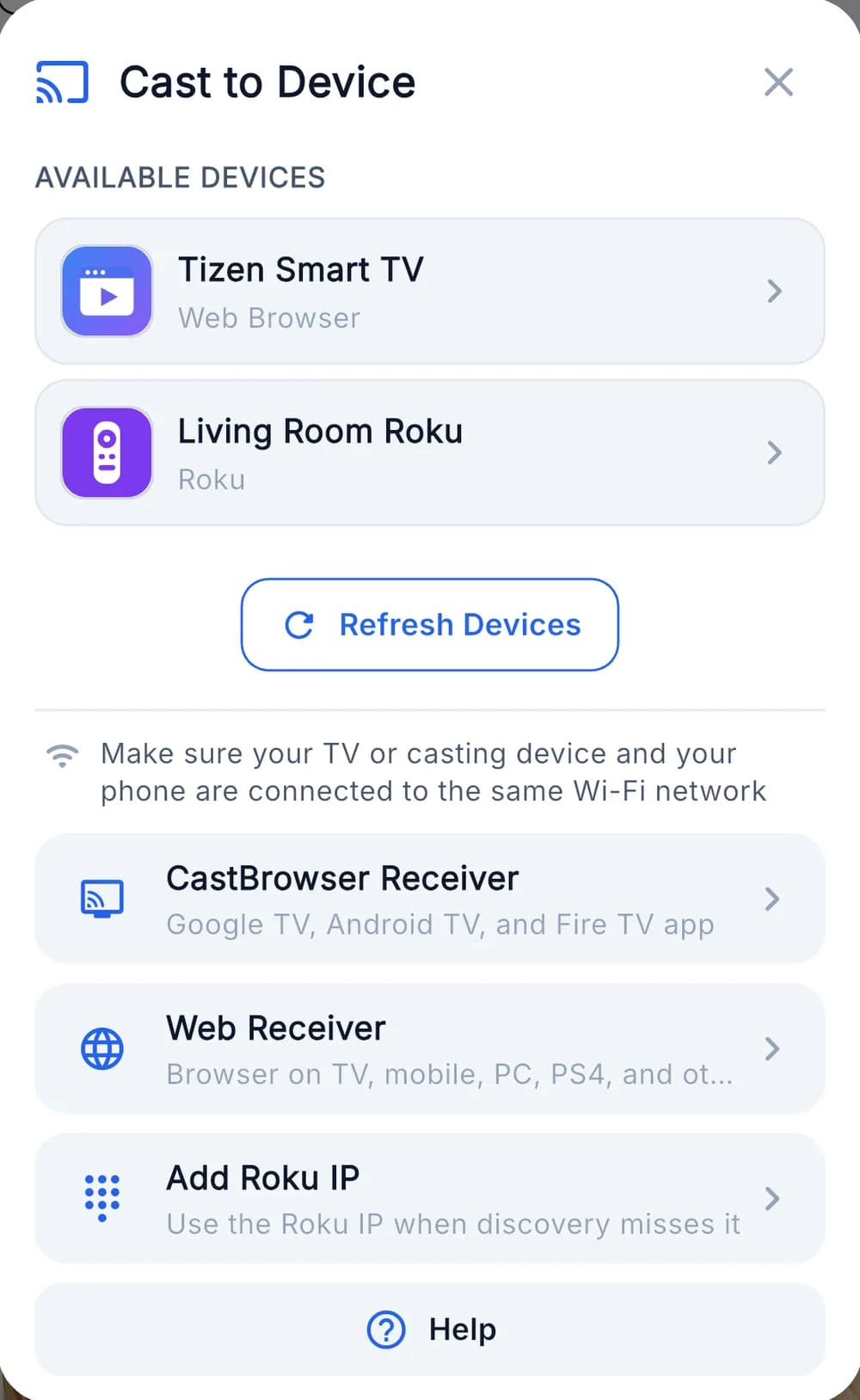
Picking a TV. Each device shows how CastBrowser reaches it. - The photo fills the TV. Tap another photo in the grid to swap it; the TV changes straight away.
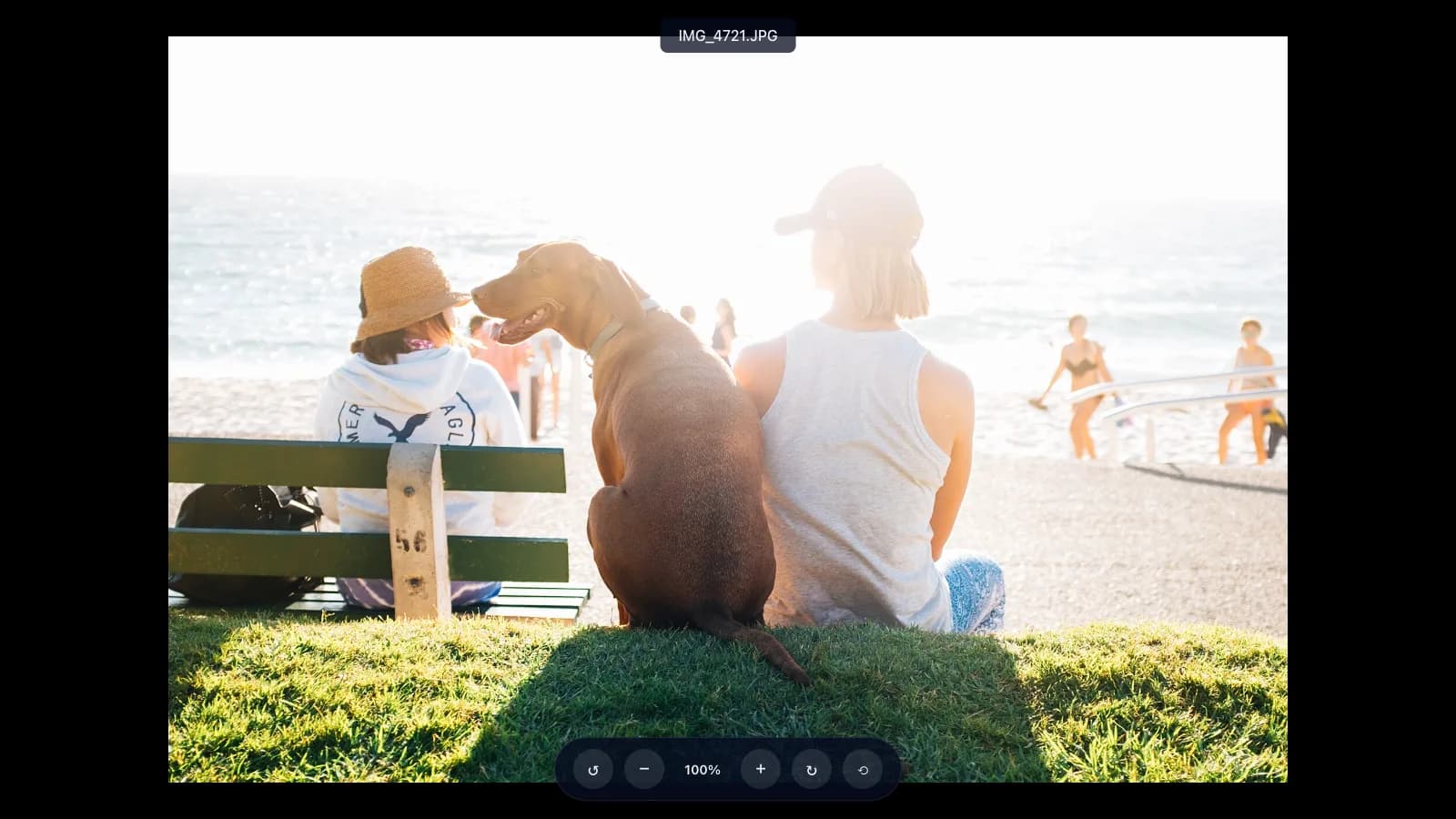
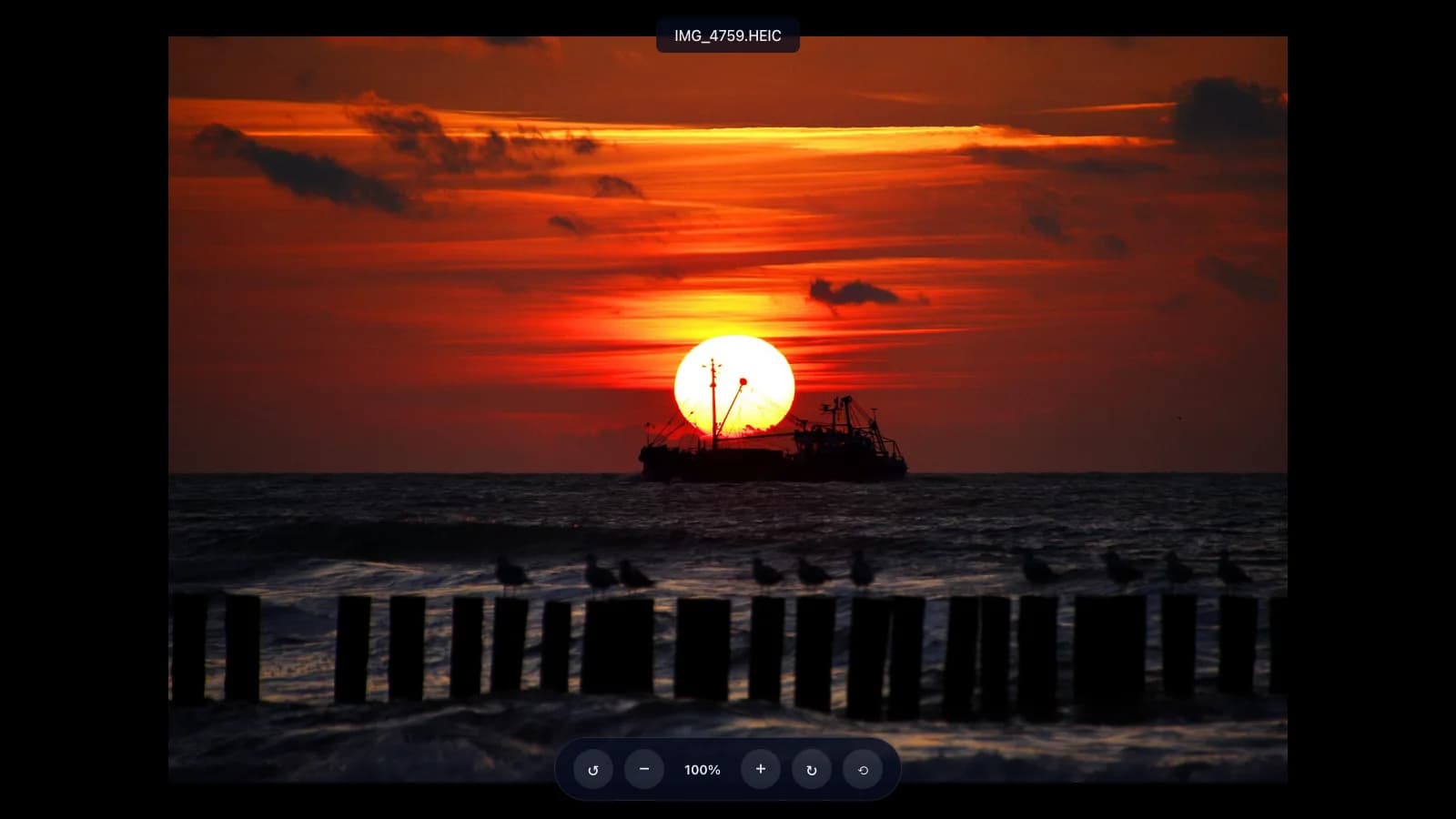
The same photo on the TV, captured from a TV-browser receiver. Sample photos from Wikimedia Commons, public domain (CC0). - Fix the framing from your phone. Rotate a sideways photo, zoom in on faces, or tap Reset. Stop Casting clears the TV.
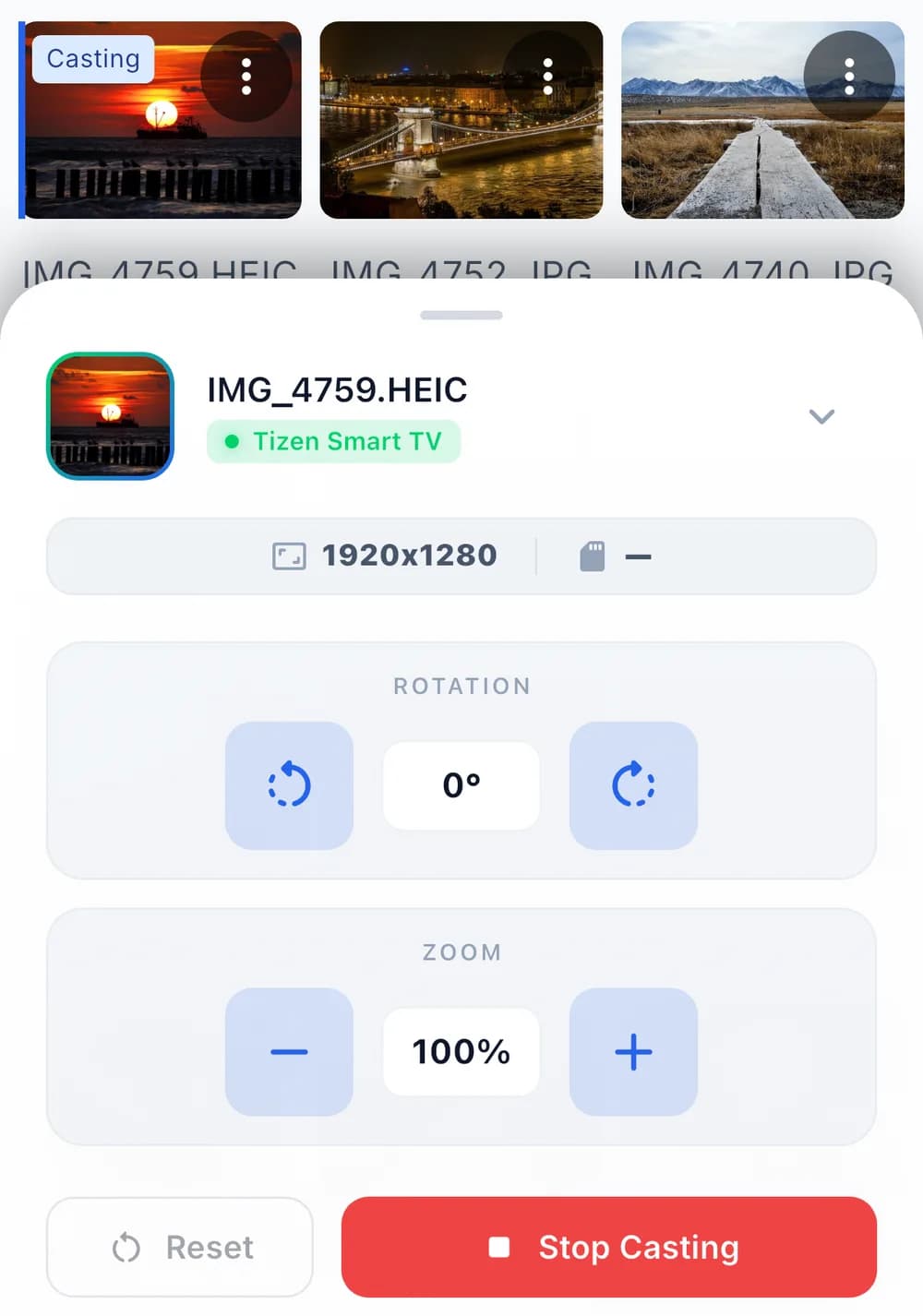
Rotation and zoom controls while a HEIC photo is on the TV.
Roku: the first time, CastBrowser asks you to add its free channel on the TV. Chromecast, LG, Samsung and DLNA TVs need nothing installed.
Free on iPhone and Android, no account needed. Put your photos on the TV tonight.
What about HEIC photos?
iPhones save photos as HEIC by default to save space. Many TVs and streaming sticks can't open HEIC files, which is why a photo can look fine on the phone and fail on a TV, a USB stick or a DLNA app. CastBrowser makes a JPEG copy on the iPhone just before casting, so the TV receives a format it can display. Your original stays untouched in the library.
If you mainly copy photos to USB sticks or other apps, you can switch the camera to JPEG: Settings → Camera → Formats → Most Compatible. Photos take more space that way.
Method 3: Google Photos on a Chromecast
With a Chromecast or Google TV, you can also use the Google Photos app. Sign in, open the photo or album, tap More → Cast and select your Chromecast; the phone and Chromecast need to be on the same Wi-Fi. Google's steps cover the details. To stop, tap Cast and then Disconnect.
Method 4: An HDMI cable (no Wi-Fi needed)
- iPhone 15 and later (USB-C): a USB-C to HDMI cable or adapter. Apple notes that the iPhone 16e and 17e don't support external displays over USB-C; check Apple's USB-C model list before buying a cable.
- iPhone 14 and earlier (Lightning): Apple's Lightning Digital AV Adapter plus a standard HDMI cable.
Plug in, switch the TV to that HDMI input, and the iPhone screen appears. Open Photos and swipe through. See Apple's cable guide for the full list of adapters. This is the most reliable option in hotels; our hotel TV guide explains why Wi-Fi casting often fails there.
Photos look wrong on the TV? Quick fixes
- Black bars on the sides: portrait photos on a landscape TV always leave bars. Zoom in from the phone, or pick landscape shots for the big screen.
- Sideways photo: rotate it with the phone controls; the original isn't changed.
- Photo takes a while to appear: with iCloud Photos set to Optimize iPhone Storage, the full-size photo may need to download to the phone first.
- TV not in the list: check both are on the same Wi-Fi (not a guest network), allow Local Network access, and turn off any VPN. More steps in screen mirroring not working.
Common questions
Can I play a slideshow on the TV?
Yes, with AirPlay: start a Memory or slideshow in Photos and turn on Screen Mirroring. CastBrowser shows one photo at a time and you choose the next from your phone, which is handy when you want to linger on some and skip others.
Can I show iPhone videos the same way?
Yes. AirPlay and CastBrowser both handle videos from the Photos library. iPhone videos are often HEVC or HDR, which some TVs can't play. When you cast to a Chromecast, a Roku or a TV browser (Web Receiver), CastBrowser converts those to a compatible format first. Other TVs receive the original file, so if one won't play, try one of those three routes. See casting videos stored on your phone.
Do my photos get uploaded anywhere?
Not with AirPlay or CastBrowser: both send the photo across your home network without uploading it.
Does this work from an Android phone?
CastBrowser works the same way on Android. Android phones can also use Google Photos to cast to a Chromecast; see casting from Android to a TV.
Related guides
- Cast from iPhone to a TV
- Connect an iPhone to a Samsung TV
- Get iPhone video on a Fire Stick
- Cast from an iPad to a TV
Show Your Photos on the Big Screen
CastBrowser sends iPhone photos and videos to Roku, Chromecast and smart TVs, HEIC included. Free to download and use.