How to AirPlay to a Roku From Your iPhone
Turn AirPlay on, check whether your Roku model has it, fix the usual "Roku doesn't show up" problems, and get iPhone video onto a Roku that has no AirPlay at all.
Quick answer
- On the Roku, open Settings → Apple AirPlay and HomeKit and set AirPlay to On. If that menu is missing, your Roku doesn't support AirPlay or needs a software update.
- Put the iPhone and the Roku on the same Wi-Fi network.
- On the iPhone, tap the AirPlay icon in a video app, or open Control Center → Screen Mirroring, and choose your Roku.
No AirPlay menu, or the Roku never appears? The free CastBrowser app sends web videos and phone videos to the CastBrowser channel on the Roku instead. It works from Android phones too.
Roku without AirPlay? Get CastBrowser free and send iPhone video to it.
Which Roku models support AirPlay?
AirPlay came to Roku with a software update, not with new hardware, so it depends on two things: the model and the Roku OS version. To see both, press Home on the remote and open Settings → System → About. This is Roku's own compatibility list, last updated June 2026:
| Roku OS needed | Models |
|---|---|
| Any version | Roku Select and Roku Plus Series TVs |
| 9.4 or later | Roku TV models Axxxx, Cxxxx, CxxGB and 7xxxx; Streaming Stick+ (3810, 3811); Streaming Stick 4K (3820) and 4K+ (3821); Express 4K (3940) and 4K+ (3941); Premiere (3920, 4620) and Premiere+ (3921, 4630); Ultra (4600, 4640, 4660, 4661, 4670, 4800, 4802, 4850); Ultra LT (4662, 4801); Streambar (9102), Streambar Pro (9101R2), Smart Soundbar (9101), onn. Roku Smart Soundbar (9100) |
| 10.0 or later | Roku TV models 5xxx and 6xxx; Express (3700); Express+ (3710); Roku 4 (440) |
On the Apple side you need iOS or iPadOS 12.3 or later, or macOS Mojave 10.14.5 or later. Any recent iPhone qualifies.
Roku's list lags behind new hardware. The 2025 Roku Streaming Stick (3840R), for example, isn't in it, yet its product page says it works with AirPlay. So if your model isn't listed, check the Settings menu below or your model's product page before giving up. If the AirPlay setting really isn't there, skip to Rokus without AirPlay.
Turn on AirPlay on your Roku
- Press Home on the Roku remote.
- Open Settings → Apple AirPlay and HomeKit.
- Set AirPlay to On.
No Apple AirPlay and HomeKit entry? Check for an update under Settings → System → System update, then look again. If it still isn't there, your model isn't supported.
Roku TV or Streambar owners: these can drop off Wi-Fi in standby, so the iPhone can't find them until they're switched on. Roku recommends Settings → System → Power → Fast TV start (on a Streambar, Fast start). It keeps the network connection alive, at the cost of higher standby power use.
Three ways to AirPlay from an iPhone to Roku
1. From a video app
Start the video, tap the AirPlay icon (a screen with a triangle at the bottom) and choose your Roku. The video plays on the TV and the iPhone becomes the remote. You can lock the phone or switch apps without stopping playback in most apps.
2. Photos and home videos
In the Photos app, open a photo or video, tap the Share button, then AirPlay, and pick the Roku. Swipe on the iPhone to move to the next photo. Our guide to showing iPhone photos on a TV covers slideshows and TVs without AirPlay.
3. Screen Mirroring (everything on screen)
Open Control Center, tap Screen Mirroring and choose the Roku. Whatever is on the iPhone screen now appears on the TV, notifications included. If the TV shows a code, type it on the iPhone. Mirroring is handy for slides, games and apps with no AirPlay button, but it re-encodes the whole screen, so video usually looks softer than with option 1.
To stop, tap Stop Mirroring in Control Center or press Home on the Roku remote. Apple's AirPlay instructions show the same controls with screenshots.
AirPlay not working on Roku? Check these in order
- Is AirPlay on? Settings → Apple AirPlay and HomeKit → AirPlay should say On. A factory reset or update can switch it off.
- Same network? On the Roku, open Settings → Network → About and compare the network name with the iPhone's Wi-Fi. A dual-band router can show up as two networks; a guest network often blocks devices from seeing each other.
- Supported model and software? Compare your model with the table above and run Settings → System → System update.
- Roku TV asleep? Turn the TV on, or enable Fast TV start so it stays reachable.
- VPN on the phone? Turn it off and try again. Some VPNs hide devices on the local network.
- Restart both. Roku: Settings → System → System restart (under Power on some models). Then restart the iPhone.
Plays sound but no picture, or a black screen? Some streaming apps block AirPlay for copyright-protected video, and Netflix doesn't support AirPlay at all. Open that service's own channel on the Roku instead. For a wider set of mirroring problems, see screen mirroring not working.
Roku without AirPlay? Cast iPhone video with CastBrowser
CastBrowser doesn't use AirPlay. It talks to the Roku through Roku's own control protocol and plays the video in a free CastBrowser channel on the TV. That means it also works on models missing from Roku's AirPlay list, as long as the channel can be installed from the Roku Channel Store, and on Android phones, which have no AirPlay.
It isn't screen mirroring. You pick a video on a web page or in your phone library, and the Roku streams that video itself. Here is the whole flow:
- Install CastBrowser on your iPhone and allow Local Network access when iOS asks. If you tapped Don't Allow, turn it on later in Settings → Privacy & Security → Local Network → CastBrowser.
- Find the video. Open the website in CastBrowser's browser and press play so the app can detect the stream. For videos and photos stored on the phone, open Phone Files in the app menu instead.
- Tap the cast icon and choose your Roku. Rokus on the same Wi-Fi appear by the name you gave them in the Roku settings.
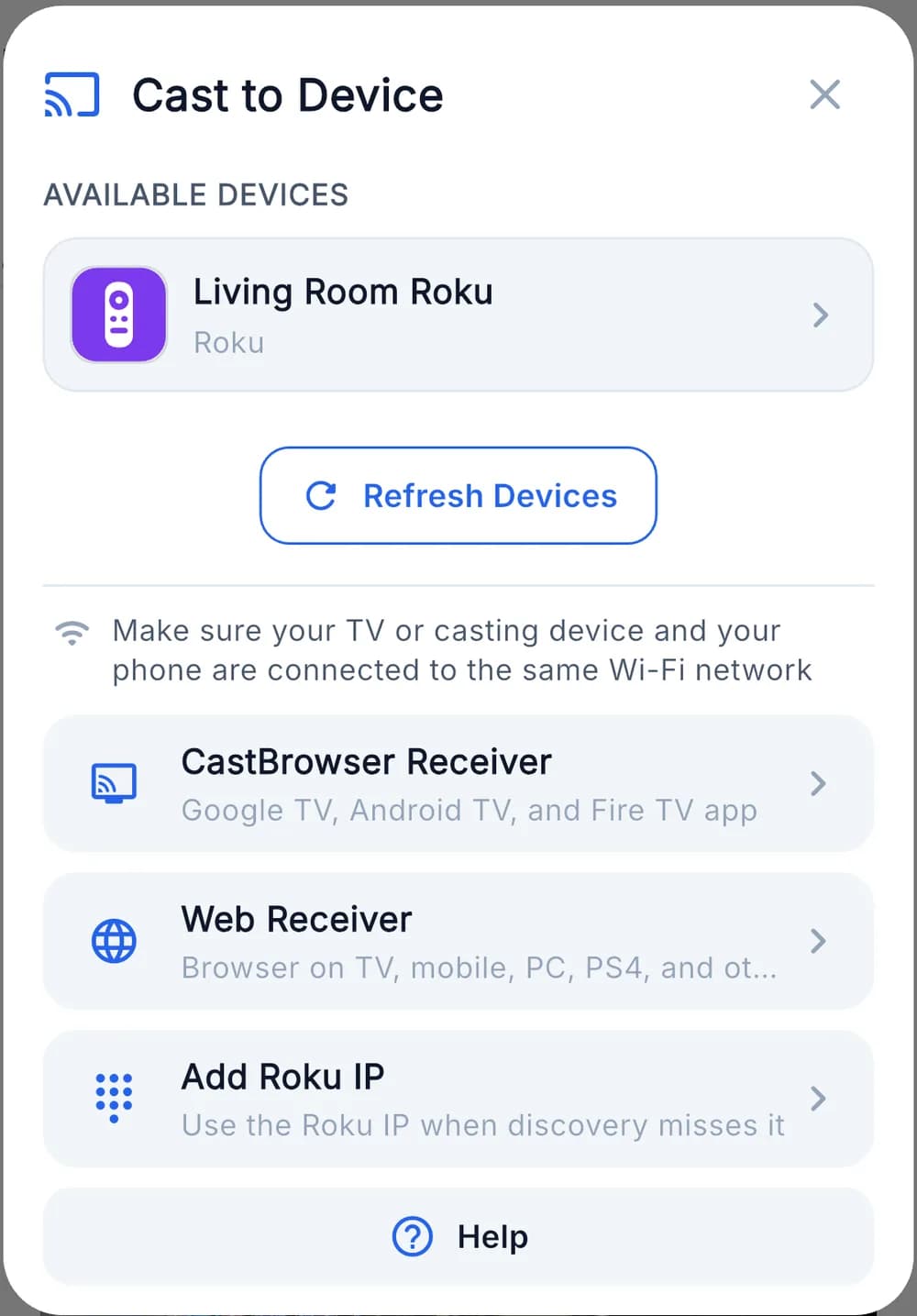
The device picker in CastBrowser on iPhone. "Add Roku IP" is the fallback when your Roku isn't listed. - Add the channel the first time. CastBrowser asks the Roku to open the CastBrowser channel in the Channel Store. Select Add Channel on the TV and the app connects by itself once it is installed. If the store doesn't open on the TV, tap Add Channel via Roku Account on the phone, sign in, and add it from there.
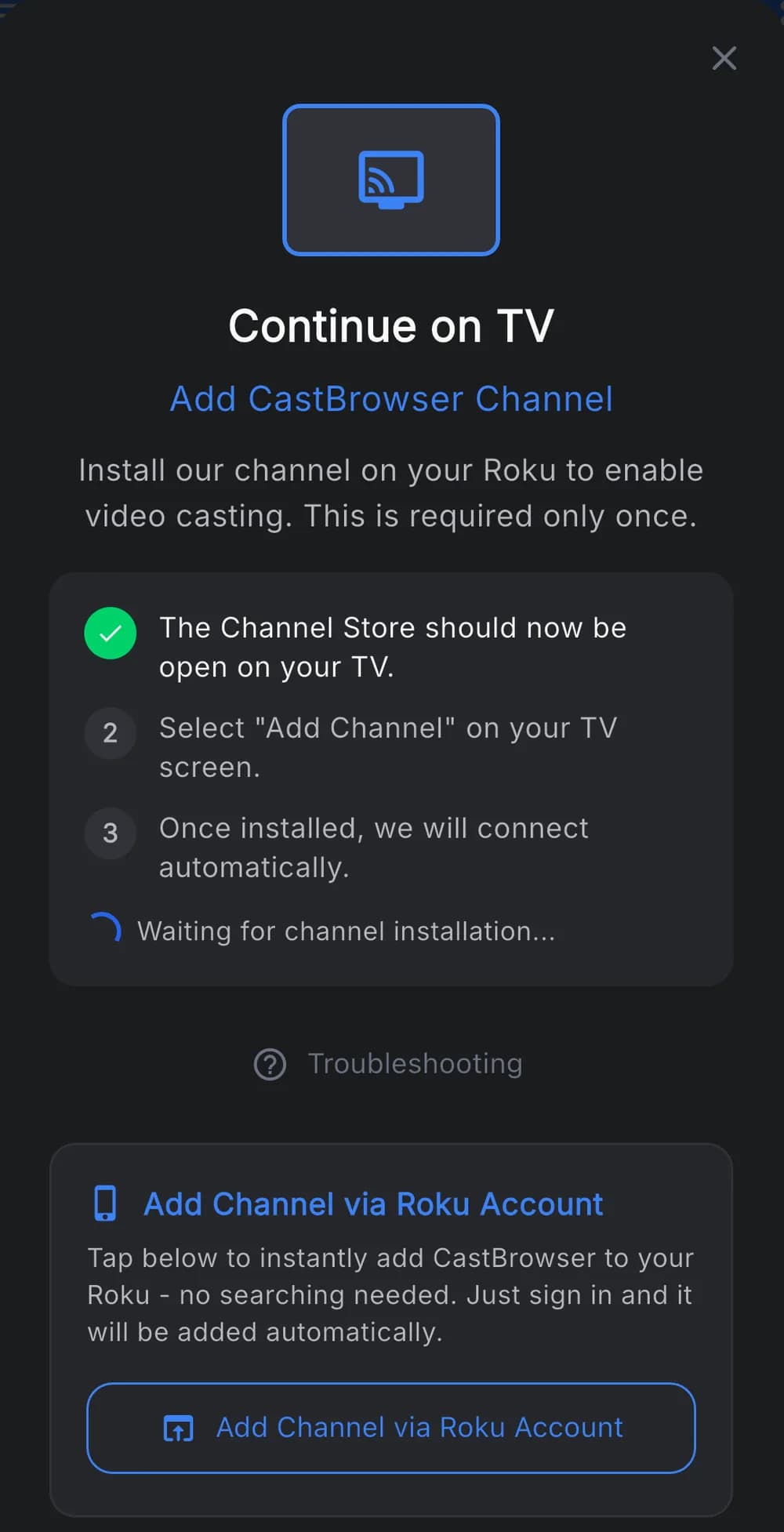
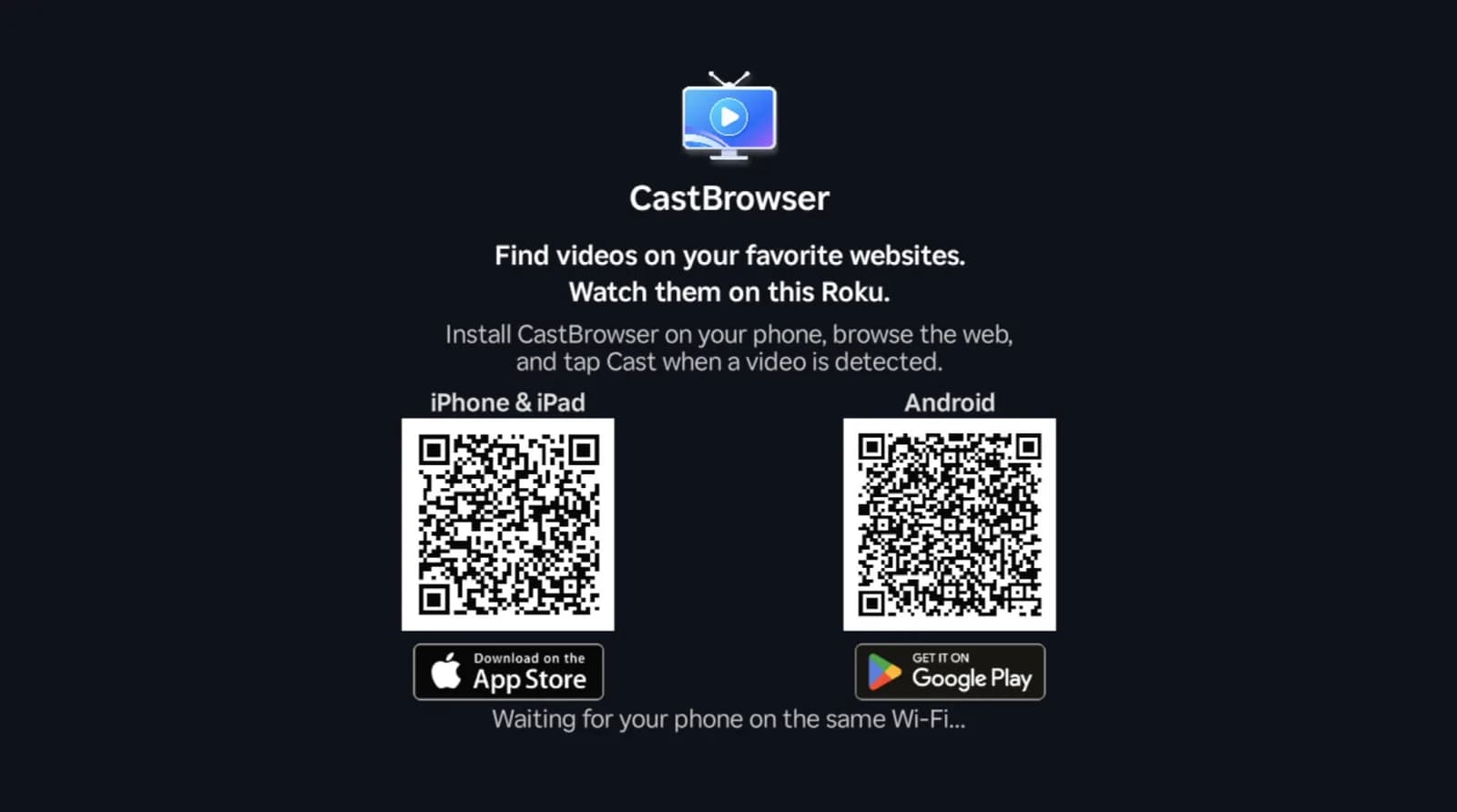
Left: the one-time channel prompt on the iPhone. Right: the CastBrowser channel on a Roku TV, waiting for a phone on the same Wi-Fi. - Watch and control it from the phone. Pause, seek and switch subtitle tracks on the iPhone. Volume stays on the Roku remote; Roku doesn't let apps change it.

A web video playing in the CastBrowser channel on a Roku TV.
Free on iPhone and Android, no account needed. Try it on your Roku.
Roku not in the list?
- On the Roku, open Settings → System → Advanced system settings → Control by mobile apps and set Network access to Enabled. Older Roku software calls this menu External Control. When it's off, no phone app can find the Roku, CastBrowser included.
- Add it by address: tap Add Roku IP, then type the IP shown on the Roku under Settings → Network → About. CastBrowser shows your phone's own address to help you spot a typo.
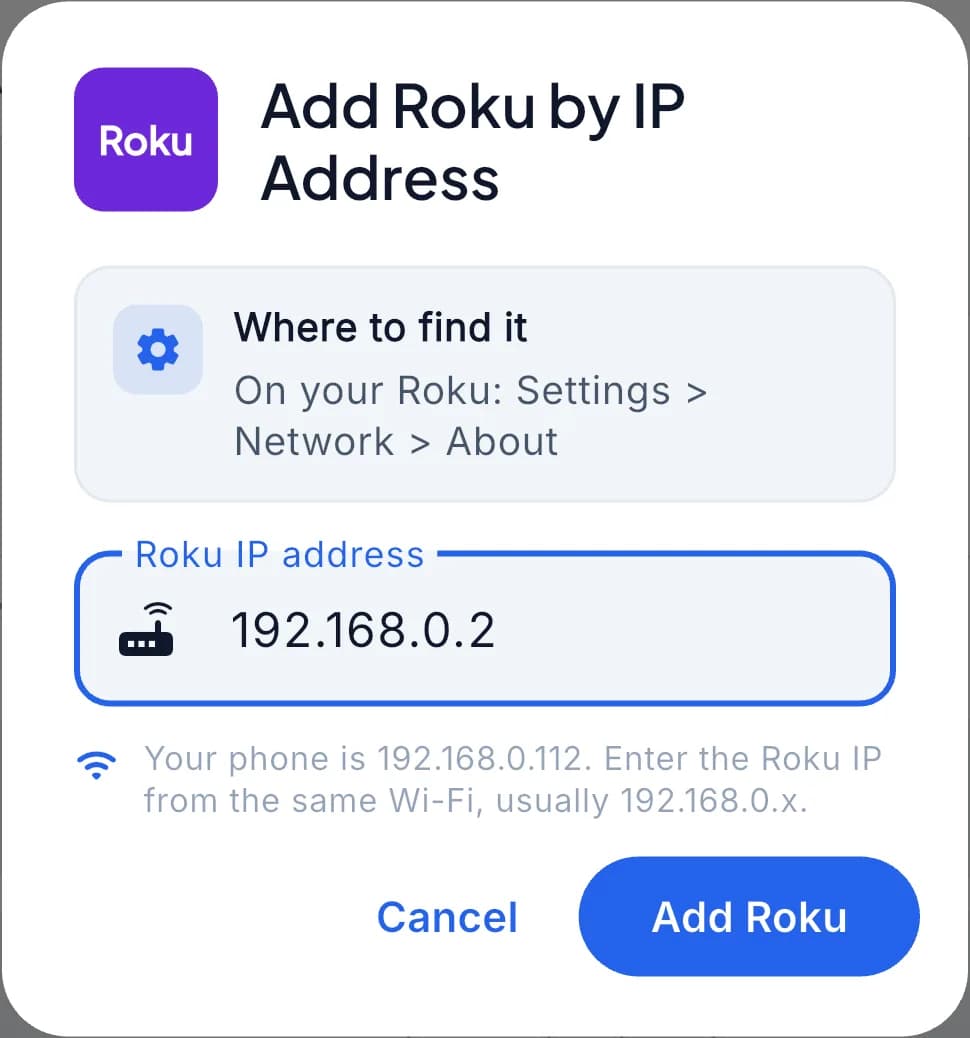
AirPlay or CastBrowser: which to use on Roku
| AirPlay | CastBrowser | |
|---|---|---|
| Roku models | Models with an Apple AirPlay and HomeKit setting | Rokus that can add the CastBrowser channel |
| Phones | iPhone, iPad, Mac | iPhone, iPad and Android |
| Mirror the whole screen | Yes | No, video and photos only |
| Video from websites | When the site's player shows an AirPlay button | Detects compatible streams on the page |
| Netflix, Disney+ and other protected apps | Varies by app | No; use their Roku channels |
| Install on the Roku | Nothing | Free CastBrowser channel, once |
Use AirPlay when your Roku supports it and you want to mirror the screen. Use CastBrowser when the Roku has no AirPlay, when AirPlay keeps dropping, when someone in the house has an Android phone, or when a website's video player has no AirPlay button. For more on the Roku side, see how to cast to Roku and why Roku doesn't support Chromecast.
Common questions
Does the Roku Express support AirPlay?
Some do. The Express 4K (3940) and Express 4K+ (3941) need Roku OS 9.4 or later; the Express (3700) and Express+ (3710) need Roku OS 10.0 or later. Other Express model numbers aren't on Roku's list.
Can I AirPlay from an Android phone to Roku?
No. AirPlay is Apple's technology and Android doesn't include it. Android users can cast videos to a Roku with CastBrowser, or mirror the screen with Roku's own screen mirroring feature on phones that support it. Our Android casting guide covers both.
Can I AirPlay to a Roku without Wi-Fi?
Roku documents AirPlay over a shared wireless network, so the iPhone and Roku need to be on the same one. A phone hotspot or travel router can act as that network; see casting without Wi-Fi.
Is AirPlay on Roku free?
Yes. It is part of the Roku software and needs no subscription. CastBrowser and its Roku channel are free to download and use too.
Why can't I find a web browser on my Roku?
Roku doesn't offer one. Browse on your phone and send the video instead; our Roku browser guide explains the options.
Related guides
- Cast from iPhone to a TV
- Which TVs support AirPlay
- Can you AirPlay to a Fire Stick?
- Cast videos stored on your phone
Put iPhone Video on Your Roku
CastBrowser sends web and phone videos to Roku, with or without AirPlay. Free to download and use.