Can Firefox Cast to a TV? Four Ways That Work
Firefox has never had Chrome's Cast button. Here is why, and the four workarounds worth your time, from a one-minute fix to the one that gives the best picture.
Quick answer
Firefox can't cast to a Chromecast or TV by itself, on desktop or on Android. Your options:
- Quickest: open the same page in Chrome or Edge and use their Cast menu.
- Stay in Firefox: install the open-source fx_cast add-on plus its helper app (Chromecast only).
- Anything on screen: mirror the whole computer screen with Windows Cast or macOS Screen Mirroring.
- Best for video: open the page on your phone in CastBrowser and send the video to Chromecast, Roku, Fire TV or a smart TV.
Watching a video? Get CastBrowser free and send it from your phone to the TV.
Why Firefox has no Cast button
The Cast icon you see in Chrome isn't part of the web. It comes from Google's Cast software built into Chrome, and websites only show their cast button when they detect it. Firefox doesn't include that software, so sites like YouTube hide the button and the TV never appears.
Mozilla knows people want it. The desktop request, "Add Casting (Chromecast) Capabilities to Desktop", has been open since June 2015. The Android one, "Add cast button to videos", has been open since January 2023. Both were still unresolved in November 2026. The old Firefox for Android could send some videos to a Chromecast, but Mozilla now marks that help article as no longer maintained.
Which method should you use?
| Method | Reaches | What the TV shows | Setup |
|---|---|---|---|
| Chrome or Edge | Chromecast, Google TV, TVs with Chromecast built in | One tab, or a site's own cast stream | A second browser |
| fx_cast add-on | Chromecast and Google Cast devices | Supported sites, or the tab | Add-on plus a helper app on the computer |
| Screen mirroring | Miracast TVs (Windows), AirPlay TVs (Mac) | The whole screen | Built into the computer |
| Phone + CastBrowser | Chromecast, Roku, Fire TV, LG and Samsung smart TVs, DLNA TVs, AirPlay (iPhone) | Just the video, full screen | A free phone app |
Subscription services such as Netflix and Disney+ protect their video, so CastBrowser can't send it and a mirrored screen may go black. Use the service's own Cast button in Chrome where it offers one, or its app on the TV.
1. Open the page in Chrome or Edge
If you have a Chromecast or a TV with Chromecast built in, this is the fastest fix. Copy the address from Firefox and paste it into Chrome.
- In Chrome, open the menu (⋮) and choose Cast, save and share → Cast.
- Pick your TV. Under Sources you can switch between casting the tab and casting the whole screen.
- On sites with their own cast button, such as YouTube, use that button instead. The TV then streams the video itself, which looks better than a mirrored tab.
Microsoft Edge has a similar option under its menu → More tools → Cast media to device. Neither browser can reach a Roku or Fire TV this way, because those don't speak Google Cast. Our Chrome casting guide covers tab casting in more detail.
2. Stay in Firefox with the fx_cast add-on
fx_cast is an open-source project that gives Firefox the Chromecast functions Chrome has. It comes in two parts: a Firefox add-on and a separate "bridge" program that does the talking to the Chromecast. Both are downloads from the project's site; the add-on isn't in Mozilla's add-on store.
- Install the bridge app for Windows, macOS or Linux, then the add-on.
- Add the site you want to the add-on's whitelist. Only whitelisted sites see a Chromecast, which is a sensible safety default.
- Reload the page. If the site supports it, its cast button appears as it would in Chrome. Otherwise use the add-on's toolbar button to cast the tab.
Before you rely on it: the latest release, v0.3.1, is from September 2022, and the project's own page warns that Windows 11 isn't supported and has crashed for some people. It works with Chromecast and Google Cast devices only. It's a good tool if you're comfortable troubleshooting, not something to set up for a relative.
3. Mirror your whole screen
Mirroring copies everything on the computer screen to the TV, Firefox included. Nothing to install, but the picture is re-encoded on the fly, so fast motion can look soft and there may be a slight delay.
- Windows: press Windows key + K (or open Quick Settings → Cast) and pick a Miracast TV or adapter. Many Samsung, LG, Sony and Hisense TVs accept Miracast; Chromecast doesn't.
- Mac: open Control Center → Screen Mirroring and pick an Apple TV or AirPlay TV. Many recent Samsung, LG, Sony, Vizio and Roku models qualify; see which TVs support AirPlay.
Then play the video full screen in Firefox. If you see the wrong resolution, set the TV as a separate display rather than a mirror. For more, see casting from a Mac to a TV and screen mirroring to a TV.
4. Send the video from your phone (best picture)
For films, sports streams and long videos, skip the computer. CastBrowser is a free browser for iPhone and Android with casting built in. Open the same page, start the video, and the app finds the stream and hands it to the TV. The TV plays the video directly at its own quality, and your phone is free while it plays.
- Get the link onto your phone. If you use Firefox on your phone too, right-click the tab in desktop Firefox and choose Send Tab to Device. Otherwise email or message the link to yourself.
- Open it in CastBrowser. Copy the link and paste it into CastBrowser's address bar, then press play on the video.
- Pick the video and the TV. Tap the red video button, choose the stream, tap the cast icon and select your TV. The phone and the TV (or Chromecast) need to be on the same Wi-Fi.
What it looks like on the phone and the TV

1Open the page and press play
Browse in CastBrowser like any browser. The red badge counts the videos it found.
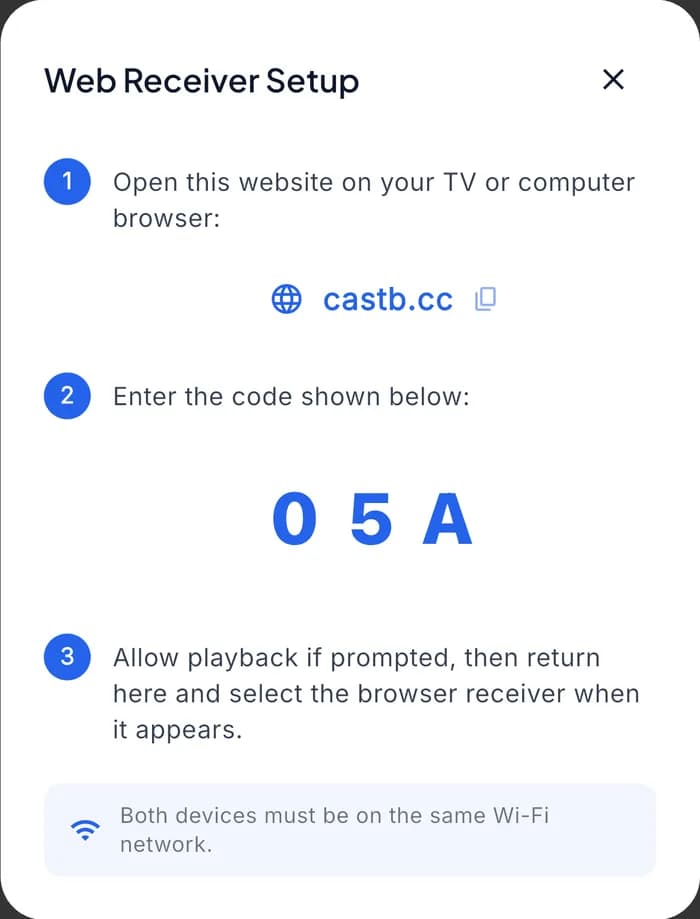
2Get a code on your phone
Choose Web Receiver. CastBrowser shows castb.cc and a three-character code.
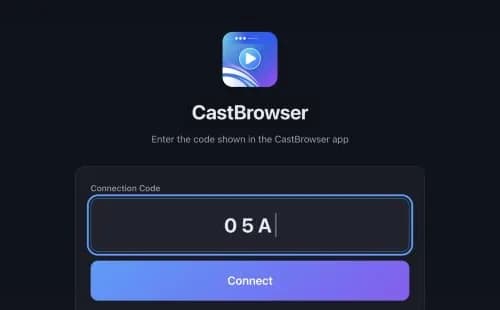
3Type it in the TV's browser
Open castb.cc on the TV, enter the same code and connect.
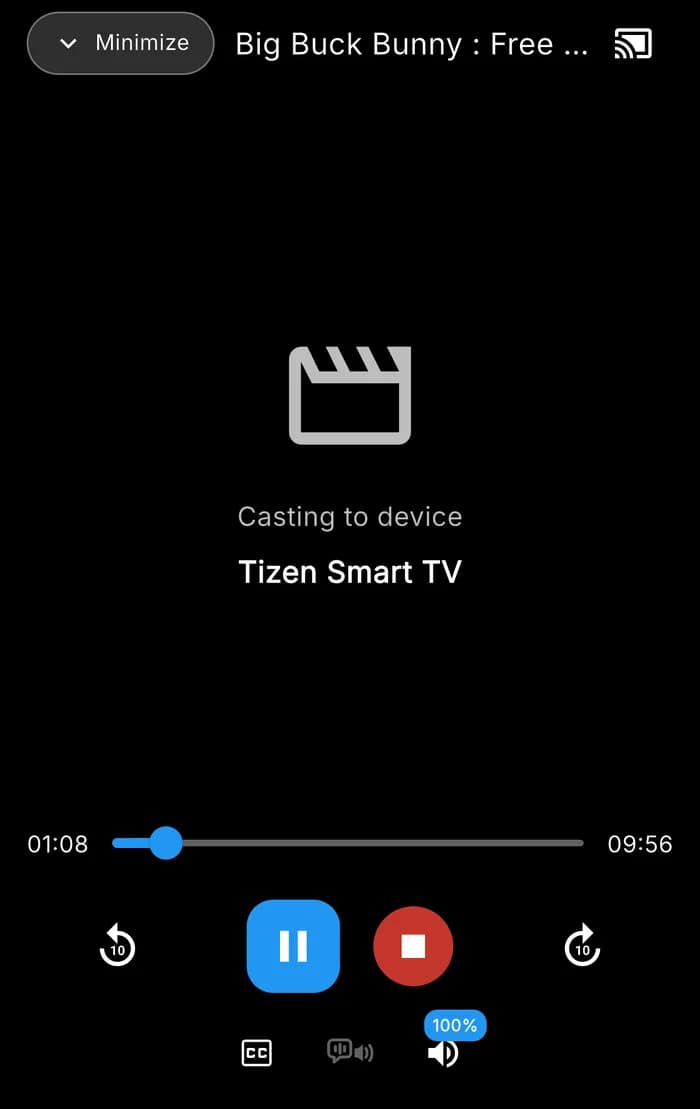
4Control it from your phone
Seek, pause, stop, subtitles and volume stay on the phone.
This route also reaches TVs Chrome can't: Roku through the free CastBrowser channel, Fire TV, LG webOS and Samsung smart TVs, and older DLNA TVs. Videos that use copy protection still won't cast, and some sites block casting outright.
Free on iPhone and Android, no account needed. On a computer? Scan the code with your phone.
Firefox on Android and iPhone
Android
Current Firefox for Android has no cast button either. Android's own Screen cast or Smart View tile in Quick Settings mirrors the whole phone, Firefox included, to TVs that support it. To send just the video, open the page in CastBrowser instead; see casting from Android to a TV.
iPhone and iPad
Firefox on iPhone can't cast to a Chromecast. If your TV supports AirPlay, Screen Mirroring in Control Center works with Firefox like any other app. For a Chromecast, Roku or Fire TV, open the page in CastBrowser; our iPhone casting guide walks through each TV.
What about Firefox on the TV itself?
There isn't one to use on the popular streaming sticks. Mozilla stopped supporting Firefox on Fire TV on April 30, 2021, and Roku doesn't offer web browsers at all. If you want to browse on the TV, see our guides to browsers on Fire TV, browsing on a Roku and the best browser for Android TV.
Common questions
Does Firefox support Chromecast?
Not natively, on any platform. The fx_cast add-on adds it on desktop, with the limits described above.
Can I cast from Firefox to a Roku or Fire TV?
Not directly. Neither device supports Google Cast, even from Chrome, so a Chromecast add-on doesn't help. Mirror the screen to a Roku with AirPlay, or send the video from your phone with CastBrowser. See does Roku support Chromecast?
Why is the cast option missing on YouTube in Firefox?
YouTube only shows its cast button when the browser has Google's Cast software, which Firefox doesn't. On the TV, the YouTube app can pair with your phone instead.
Is fx_cast safe?
Its code is public on GitHub, and the whitelist limits which sites can reach your Chromecast. It isn't reviewed or distributed by Mozilla, and the helper app runs in the background on your computer, so install it only from the project's own site.
Related guides
- Cast Chrome browser videos to a TV
- "Cast available for specific video sites" in Chrome
- Websites you can cast to a TV
- Cast to Chromecast and Google TV
Watch Web Videos on Your TV
Open the page on your phone, press play, and CastBrowser sends the video to your TV. Free to download and use.